How to Make AI Videos: 6 Ways to Create and Edit Clips in 2026
Text to video, image to video, photo animation, video edits, upscaling and motion control — step by step, with prompts and credit prices
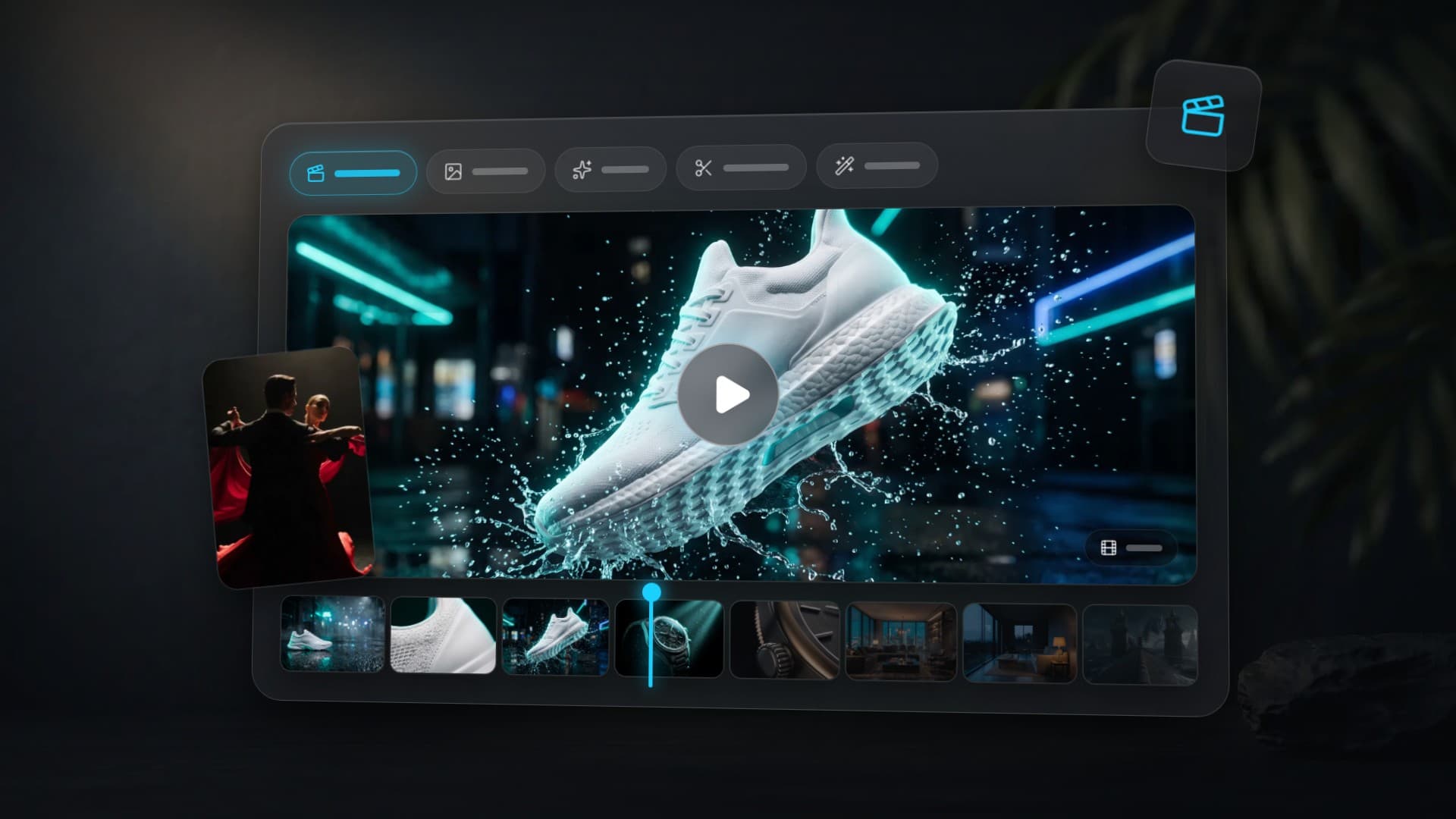
“Make an AI video” is really six different jobs, and each one starts from different material. A clip from nothing needs a description. A product ad needs the product photo. A family archive needs an old portrait, and a dance trend needs someone else's movement. To make AI videos, pick the method that matches what you already have: text, a photo, a finished clip or a voice recording. Clipia's video studio has six tabs for this. Here is how each one works, what to put in the form, and what it costs in credits.
Quick answer: which mode to pick
| What you have | Tab | What you get | Price with the default model |
|---|---|---|---|
| Only an idea | Text to video | A clip shot from your scene description | from 5 credits for 5 s, 480p |
| A photo or picture | Image to video | The frame starts moving the way you describe | from 5 credits for 5 s, 480p |
| A portrait, and no wish to write | Animate a photo | A smile, a blink, a nod — no prompt needed | 5 credits for 5 s, 15 credits for 15 s |
| A portrait and a voice recording | Animate a photo → Talking photo | The person in the photo says your recording | from 5 credits for 1 s of voice-over, up to 15 s |
| A finished clip | Edit video | The same shot with a new background, light or outfit | from 80 credits for up to 4 s of source video, 720p |
| A soft, blurry clip | Upscale video | The same clip 2× or 4× larger, up to 4K | depends on length and scale |
| A character photo and a motion video | Motion control | The character repeats the dance or gestures | from 6 credits per second, 720p |
Prices are as of October 13, 2026. The exact amount is always on the button before you start, and it changes with the model, duration and quality.
What is an AI video studio?
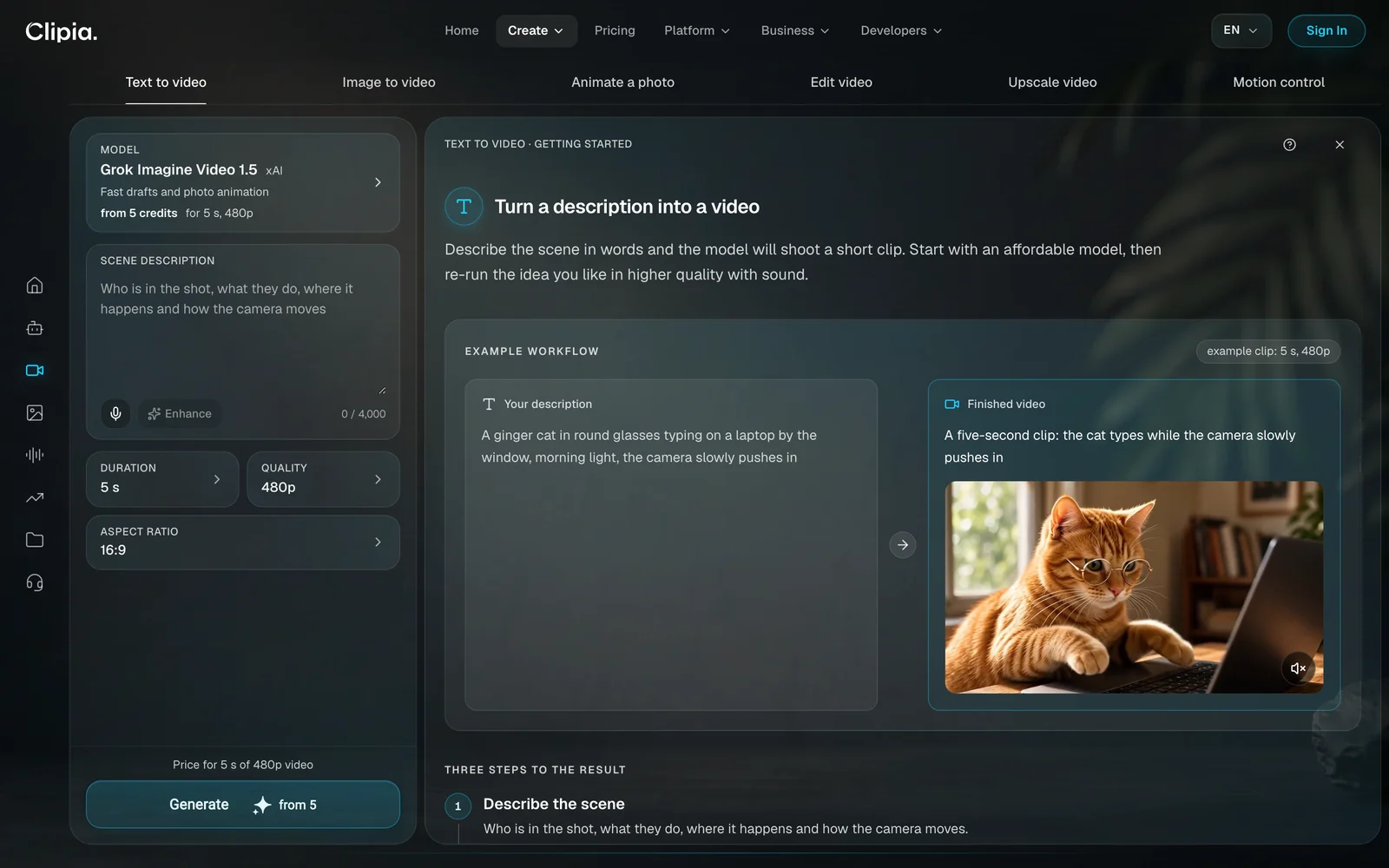
The Clipia video studio is one page where you can both create a clip and rework it. The tab sets the task and the form is already tuned for it: a model is selected, duration and quality are filled in, and the price is on the button. Every tab carries an example showing what was uploaded, what was written and what came out.
One generation gives a clip of up to 30 seconds; the limit depends on the model. Longer videos are assembled from segments: the last frame of one clip becomes the first frame of the next. A finished clip stays in My tasks, where you can download it, run it again or pass it to another tab through the Use in… menu.
1. How to make a video from text
Best for: an intro, an ad scene, a post illustration, a quick test of an idea — when you have neither a photo nor footage.
The default model is Grok Imagine Video 1.5 by xAI: from 5 credits for 5 seconds at 480p. It is built for fast drafts. The scene description takes up to 4,000 characters, and the clip is ready in 1 to 3 minutes.
Step 1. Describe the scene
A description needs four things: who is in the shot, what they do, where it happens and how the camera moves.
A ginger cat in round glasses typing on a laptop by the window, morning light, the camera slowly pushes in
If you are short on words, the Enhance button fills in the details.
Step 2. Set duration, quality and aspect ratio
The form starts at 5 seconds, 480p and 16:9. For a vertical clip, choose 9:16. Each setting updates the price on the Generate button straight away.
Step 3. Generate and compare
Every model, and even every run, gives a different result. An idea that works is worth repeating on a stronger model. Kling 3 handles human motion more accurately, Gemini Omni and Seedance 2.0 produce a clip with sound in one pass, Wan 2.7 is good at stylised scenes, and Hailuo 2.3 at dynamic shots.
2. How to make a video from a photo
Best for: a product, an interior, food, an illustration, a frame from the image studio — anything where what is already in the picture must stay.
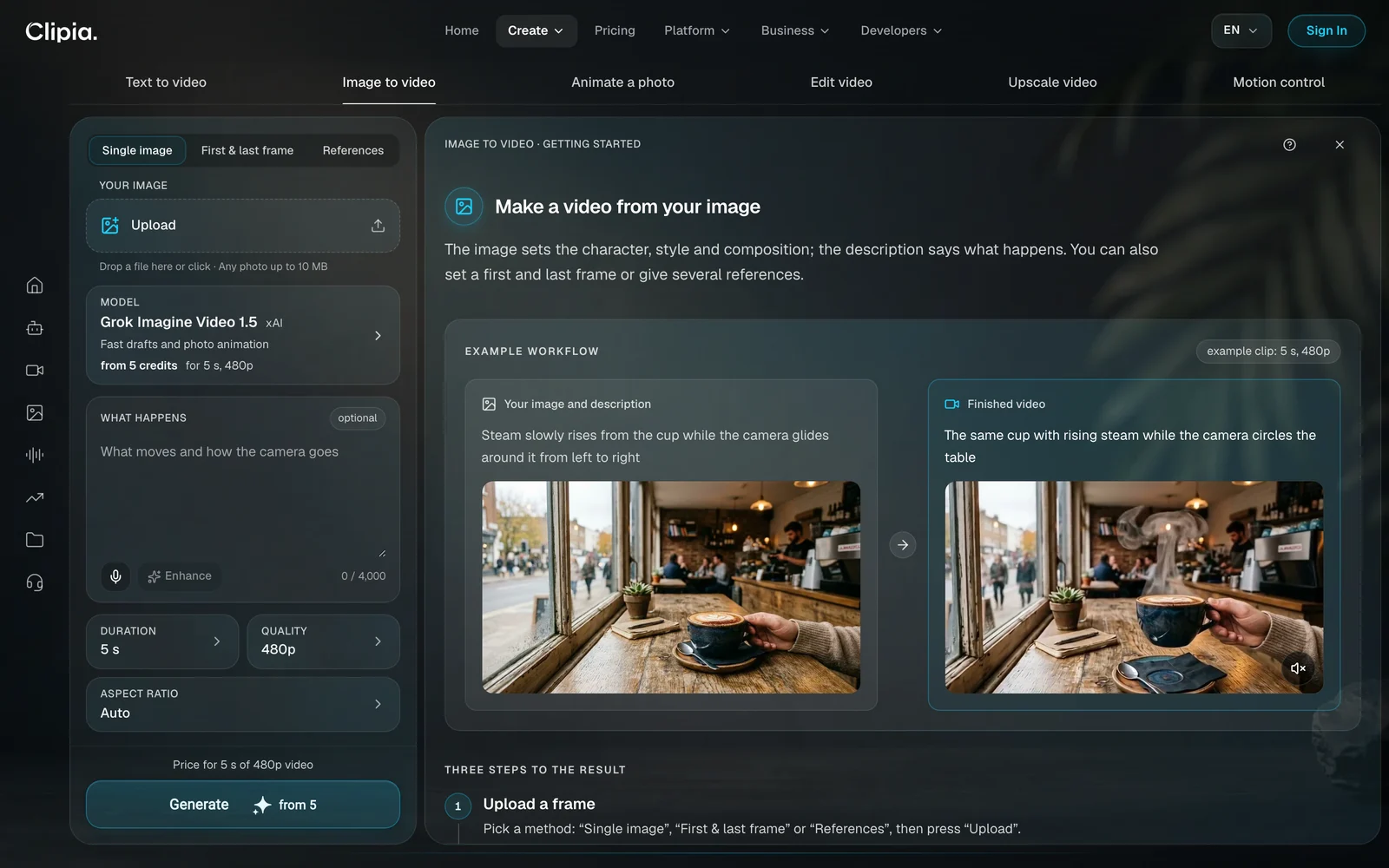
The Image to video tab works in three ways. The image sets the character, style and composition; the description only says what happens.
Single image
The model takes your picture as the first frame and builds the motion from there. Upload a photo of up to 10 MB and write one or two sentences in the What happens field. The field is optional, but the result is more predictable with it.
Steam slowly rises from the cup while the camera glides around it from left to right
The Auto aspect ratio keeps the proportions of your photo. With Grok Imagine Video 1.5 the price starts at 5 credits for 5 seconds at 480p.
First & last frame
You upload two images, a start and an end, and the model builds the transition between them. This is how people make a change of daylight, a before-and-after, or one object turning into another. The default is Veo 3.1 Lite by Google: from 11 credits for a 4-second 720p clip with sound. Kling, Seedance, Wan and Hailuo support this method too.
References
Several images define a character, an object or a style, and the model builds the scene around them. The default is Veo 3.1 Fast by Google: up to 3 references, from 22 credits per clip. With references, Veo only makes 16:9 or 9:16 videos that are 8 seconds long. If you need more images, switch models: Seedance 2.0 takes up to 9 and Wan 3.0 up to 10.
| Weak prompt | Strong prompt |
|---|---|
| A beautiful cup of coffee on a table in a cosy café | Steam rises from the cup, the camera slowly pushes in |
| A woman walks, laughs, waves, turns around and runs away | The woman turns to the camera, her hair blowing in the wind |
| Make it dynamic | The camera orbits the object from left to right |
There is one rule: the photo has already shown what is in the frame, so describe the motion, not the picture. If the clip is off, change the description, not the image. More techniques are in how to create a video from a photo.
3. How to animate a photo
Best for: a family archive, a portrait for a greeting, an avatar, a pet photo — when you want a short living frame and no prompt writing.
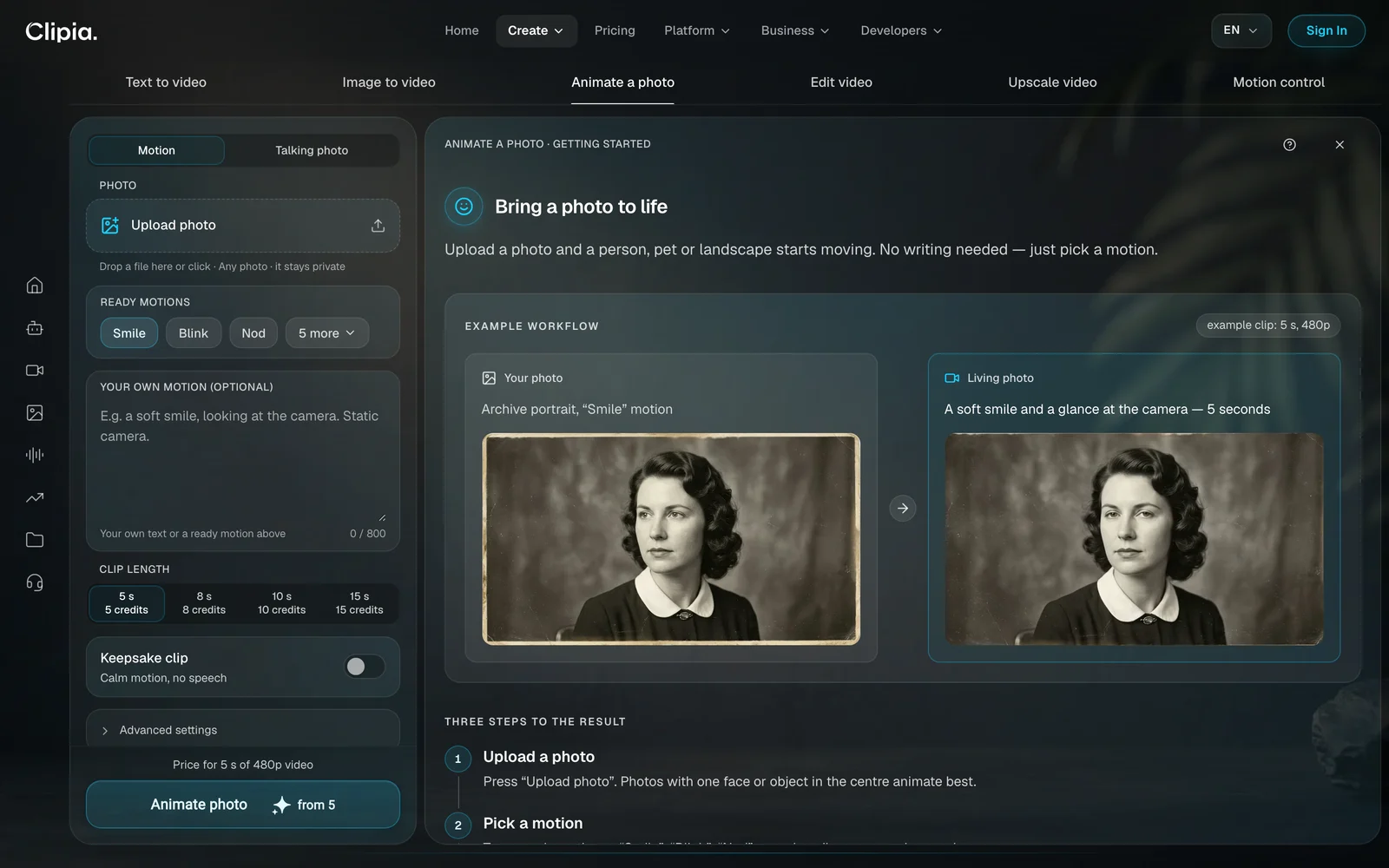
The Animate a photo tab needs no writing at all. Upload a picture and tap a ready motion: Smile, Blink, Nod, and five more, including a head turn, a light breeze and a camera push-in. You can also describe your own motion in one phrase of up to 800 characters.
The price follows the length: 5 seconds cost 5 credits, 8 seconds cost 8, 10 seconds cost 10, and 15 seconds cost 15. The Keepsake clip switch sets a calm motion without speech. It was made for old and black-and-white photos.
Talking photo: make a portrait speak
Inside the same tab there is Talking photo: the person in the picture says your recording, with lips and expression matching the speech.
- Upload a front-facing portrait of up to 10 MB with a clearly visible face.
- Add a speech recording: MP3, WAV, OGG or AAC, 3 to 15 seconds long and up to 10 MB.
- Press Make it talk. The clip is as long as the audio.
The model is Kling Lip Sync by Kuaishou, the video comes out in 720p, and the price starts at 5 credits for 1 second of voice-over, with recordings up to 15 seconds. If you have no recording, voice your text in the audio studio: the track comes back to the form through Use in…. The steps are in the AI voice over guide.
4. How to edit a finished video with AI
Best for: changing the time of day, clothes, background or style in a clip that is already shot or generated — without a reshoot.
The Edit video tab has two sub-modes, and they solve different problems.
With a prompt: edit in words
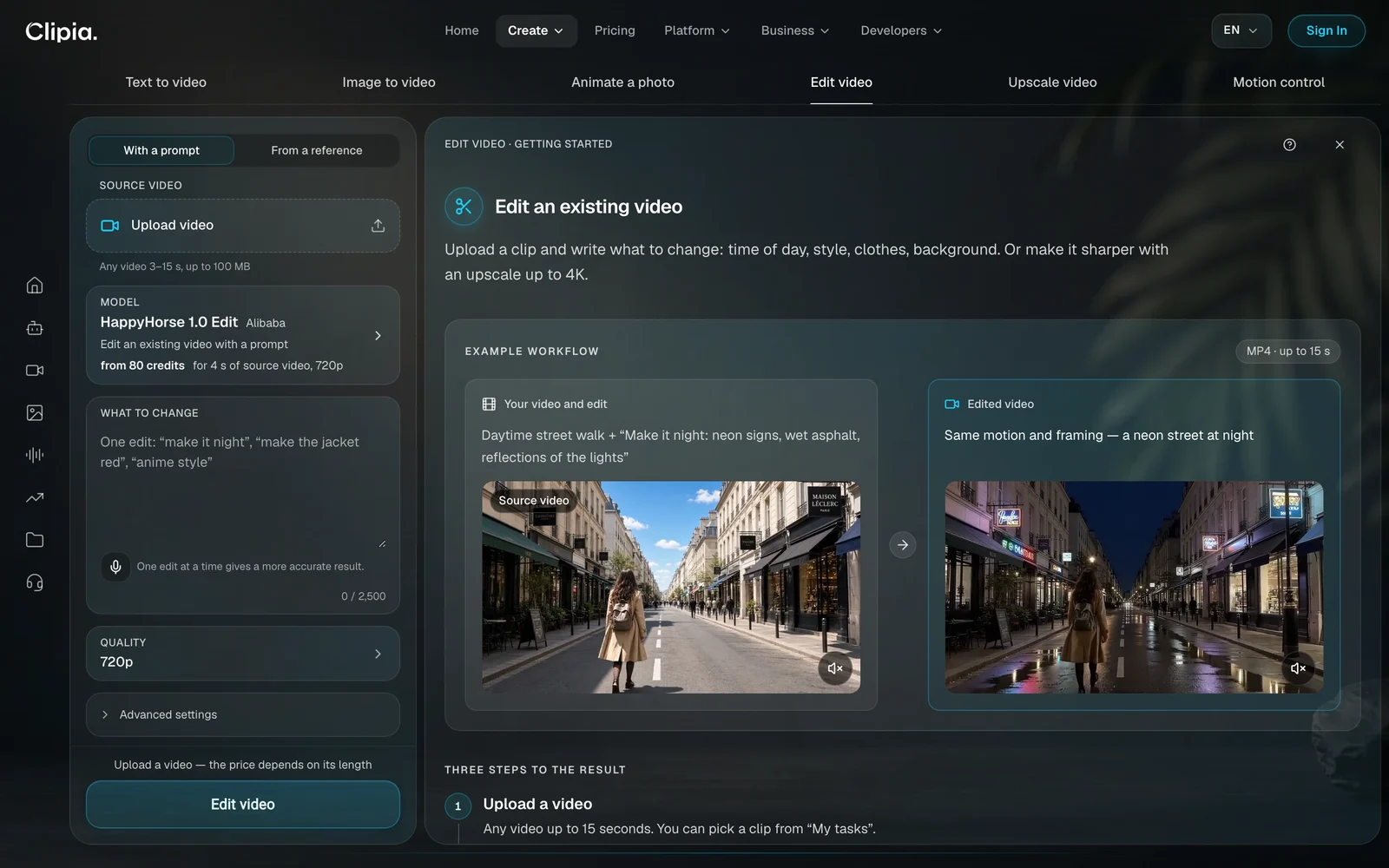
Upload a clip of 3 to 15 seconds and up to 100 MB, then write one change in the What to change field. The motion and framing stay as they were.
Make it night: neon signs, wet asphalt, reflections of the lights
The default is HappyHorse 1.0 Edit by Alibaba: from 80 credits for up to 4 seconds of source video at 720p, then 20 credits per second. The price depends on the clip length, so editing a short fragment costs less than editing the whole thing. Other models behave differently. Kling O3 Transformation outputs up to 4K but creates no sound. Gemini Omni keeps the source length. Seedance 2.5 accepts a source of up to 30 seconds and lets you choose the output duration and turn sound on.
From a reference: a new video with borrowed motion
Here the source video is not edited; a new one is shot. The reference clip sets the motion, camera and style, images set the character and objects, and the description sets the scene itself. The default is Seedance 2.0 Mini by ByteDance: from 21 credits for 4 seconds of video plus 2 seconds of reference at 480p. The form takes up to 3 reference clips of 2 to 15 seconds each, up to 9 images and up to 3 audio references. For Seedance and Wan the price includes the reference seconds, so a shorter reference means a cheaper run.
A girl in a red coat dances on a rooftop at sunset
5. How to upscale a video to 4K
Best for: bringing a clip generated at 480p or 720p to a clean picture before publishing or showing it on a large screen.
The Upscale video tab runs on Clipia 4K Upscale. The source is a clip from My tasks or your own file, no longer than 180 seconds.
- 2× — up to 1080p–1440p. This suits most clips.
- 4× — up to 4K, if the source is 720p or lower.
The story and motion do not change; only sharpness and frame size do. The price depends on the clip length and the scale, and it is shown on the button. Make upscaling the last step, after every edit is done.
6. How to transfer motion from a video to a photo
Best for: a trending dance, a presenter's gestures, a character's body language — when a movement is easier to show than to describe.
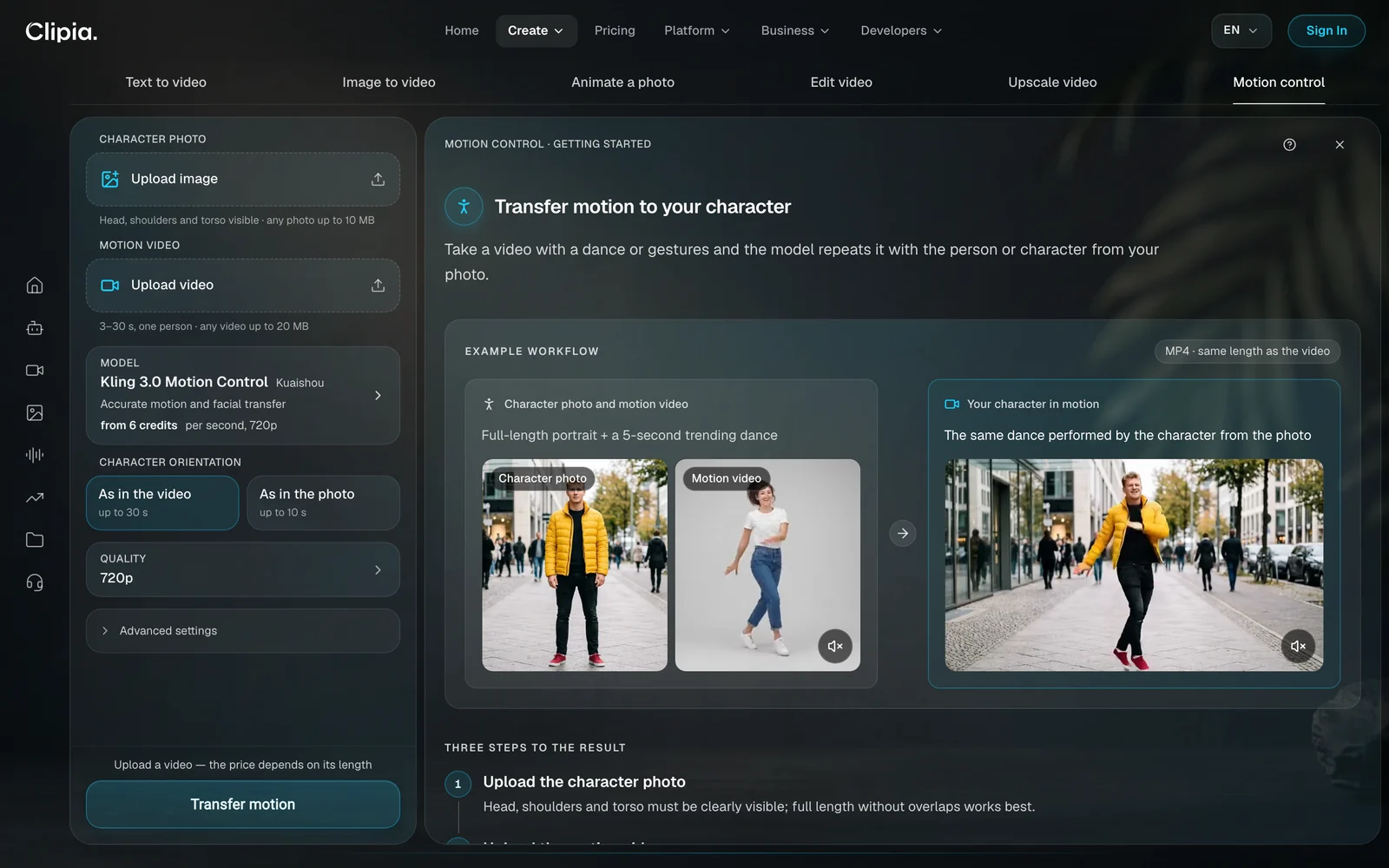
In the Motion control tab, the motion comes from a reference video instead of text.
- Upload a character photo of up to 10 MB. The head, shoulders and torso must be visible; full length without overlaps works best.
- Add a motion video: 3 to 30 seconds, one person in the shot, up to 20 MB.
- Choose the orientation: As in the video allows up to 30 seconds, As in the photo up to 10 seconds.
- Press Transfer motion. The result is as long as the video.
The default is Kling 3.0 Motion Control by Kuaishou: from 6 credits per second at 720p. To save credits, choose Kling 2.6 Motion Control; if the face matters most, stay on 3.0. Distortion is lowest when the pose in the photo is close to the first pose in the video.
Which AI video model should you choose?
| Task | Model | Good to know |
|---|---|---|
| A fast draft | Grok Imagine Video 1.5 (xAI) | from 5 credits for 5 s at 480p |
| Human motion | Kling 3 (Kuaishou) | clips of 3 to 15 s; sound is a separate setting |
| A clip with sound in one pass | Gemini Omni (Google), Seedance 2.0 (ByteDance) | dialogue, ambient sound and music synced to the picture |
| A longer segment | Seedance 2.5 (ByteDance) | 4 to 30 s; 480p, 720p, 1080p |
| A transition between two frames | Veo 3.1 Lite (Google) | from 11 credits for a 4 s clip at 720p |
| Facial expression on a portrait | Hailuo 2.3 Fast (MiniMax) | marked in the studio for animating faces |
| Output up to 4K | Gemini Omni, Kling O3 | Kling O3 does not create sound |
For a detailed comparison, see the complete guide to AI video models.
How to write a video prompt that works the first time
- One main action. The simpler the motion, the more stable the result. A model cannot fit three actions in a row into five seconds.
- The camera gets its own phrase. Push in, pull out, pan or orbit. Without it the camera either stands still or drifts at random.
- Light and time of day. “Morning light” or “neon and wet asphalt” set a mood faster than the word “atmospheric”.
- For image to video, describe motion only. The subject is already in the picture, so there is no need to describe it again.
- One edit at a time. In the video editor, the second change is made on the new clip.
Ready-made wording is in 10 prompts for video generation.
How many credits does an AI video cost?
| Action | Default model | Price |
|---|---|---|
| Text to video, 5 s, 480p | Grok Imagine Video 1.5 | from 5 credits |
| Video from a single image, 5 s, 480p | Grok Imagine Video 1.5 | from 5 credits |
| First and last frame, 4 s, 720p | Veo 3.1 Lite | from 11 credits |
| References, 8 s, 720p | Veo 3.1 Fast | from 22 credits |
| Animate a photo | chosen automatically | 1 credit per second: 5 to 15 credits |
| Talking photo | Kling Lip Sync | from 5 credits for 1 s of voice-over, up to 15 s |
| Video edit with a prompt, 720p | HappyHorse 1.0 Edit | from 80 credits for up to 4 s of source video |
| Video from a reference, 480p | Seedance 2.0 Mini | from 21 credits for 4 s of video and 2 s of reference |
| Motion control, 720p | Kling 3.0 Motion Control | from 6 credits per second |
New accounts get 5 welcome credits, enough for one five-second clip at 480p. After that, plans start from $10 per month, and the Basic plan includes 240 credits. If a generation fails for a technical reason, the credits are returned.
Common mistakes and how to fix them
- Describing the picture in Image to video. The model can already see it. Write what moves and how the camera goes.
- Swapping the photo when the motion is wrong. The picture is not the problem. Rewrite the description.
- Editing a long clip in full. The price of an edit follows the source length. Cut out the seconds you need and work on those.
- Upscaling before editing. Each edit creates the clip again. Upscale at the very end.
- Using a motion video with several people. Motion control needs one person in the shot, otherwise the model cannot tell whose movement to transfer.
- Uploading a profile shot for a talking photo. It needs a front-facing portrait with a clearly visible face. If the lips drift from the speech, replace the photo with a sharper one.
More on AI video, images and audio
- How to use an AI image generator: 5 ways — where the first frame of your clip comes from.
- How to make an AI voice over — voice, music and subtitles for your video.
- Animating a photo — more on old pictures and portraits.
- Clipia update: three task-based studios — what changed on October 12, 2026.
Frequently asked questions
How do I make an AI video from scratch?
Open the Text to video tab, describe the scene — who is in the shot, what they do, where it happens and how the camera moves — choose a duration and press Generate. The clip is ready in 1 to 3 minutes.
How do I make an AI video from a photo?
In the Image to video tab, upload the picture and describe the motion in one or two phrases. The model takes the photo as the first frame and builds the motion. If you would rather not write, use Animate a photo with its ready motions.
How do I make a photo talk?
In the Animate a photo tab, switch to Talking photo, then upload a front-facing portrait and a speech recording of 3 to 15 seconds. The AI matches the lips and expression to the voice, and the clip is as long as the recording.
Can I set the first and last frame of a video?
Yes. In the Image to video tab, choose First & last frame and upload two images — the model builds the transition between them. With Veo 3.1 Lite, a 4-second 720p clip costs from 11 credits.
Can AI edit a video I already have?
Yes. In the Edit video tab, upload a clip of 3 to 15 seconds and describe one change: time of day, background, clothes or style. The motion and framing are kept.
How long can an AI video be?
One generation gives up to 30 seconds, and the limit depends on the model: Kling 3 offers 3 to 15 seconds and Seedance 2.5 offers 4 to 30. Longer videos are assembled from segments through the last frame.
Can I make an AI video with sound?
Yes. Seedance 2.0 and Gemini Omni generate a clip with a full audio track, and Kling 3 adds sound through a separate setting. A separate voice-over and music can be made in the audio studio.
How many credits does an AI video cost?
With the default model, from 5 credits for 5 seconds at 480p. The price depends on the model, duration and quality, and it is always shown on the button before you start.
Try it yourself on Clipia
60+ models for video and image generation. One account, transparent pricing.