
Photo as the starting point
The source frame defines the face, object, style and composition, helping preserve the recognisable subject or product in motion.
Upload a portrait, product shot or illustration, define camera, subject or environmental motion and create a short clip from one image. Prompts work in plain everyday language.
Upload a source image, choose a suitable model, describe the movement and save the result in the same workspace.
The source frame defines the face, object, style and composition, helping preserve the recognisable subject or product in motion.
Describe what should move: the camera pushes in, hair moves, lighting shifts or the product slowly rotates.
Credits can be used for video, images and other creative modes without paying for each tool separately.
Photo-to-video mode helps when the face, product, style or composition needs to stay recognisable. The source photo defines the base, while the prompt describes how the frame should come alive.
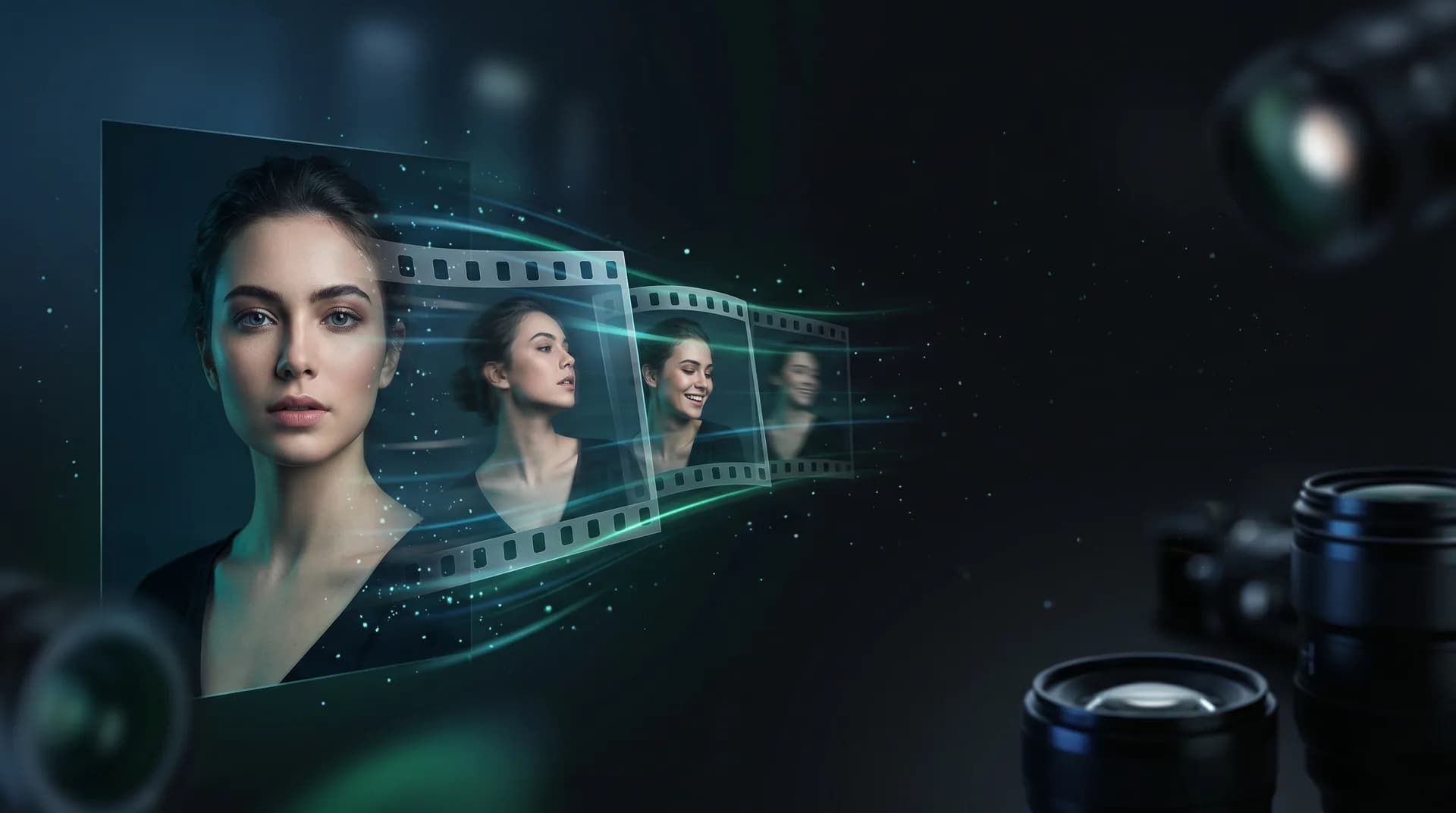
Each pair shows the starting frame and the finished animation created from it. Open a template to send the source image, format, duration and professional motion prompt into the generator.
 source
Use the uploaded image as the exact first frame. Keep the bottle shape, cap, glass geometry, liquid level, stone pedestal and background layout consistent. Create a slow clockwise camera orbit with a subtle dolly-in; teal rim highlights glide across the glass, tiny water droplets shimmer and low mist drifts gently. No text, no logos, no labels, no cuts.
Camera orbit, moving highlights, droplets and mist while the product stays stable.
 source
Use the uploaded image as the exact first frame. Preserve the person identity, facial features, hair, outfit and studio setup. Create a cinematic living portrait: subtle natural blink, tiny warm smile, gentle breathing, slight head turn toward camera, very slow push-in, soft hair movement and mild parallax in the practical lights. Realistic skin, no face morphing, no cuts.
Micro-expression, slow push-in, hair movement and background light parallax.
 source
Use the uploaded image as the exact first frame. Keep the model identity, silver jacket, black outfit, body proportions and studio light panels consistent. Create a vertical fashion social hook: camera slowly pushes in and tilts up slightly, the model shifts weight with a controlled shoulder and head turn, jacket fabric catches moving cyan and amber reflections, wet floor reflections ripple subtly. No text, no logos, no cuts.
Vertical push-in, controlled pose movement, fabric shine and reflected light.
 source
Use the uploaded image as the exact first frame. Preserve the room layout, window frames, sofa, table, plant, curtains and wall artwork. Create a premium real estate walkthrough: a slow architectural dolly forward with a slight pan right, sheer curtains move gently, plant leaves shift softly, sunlight and shadows drift across the floor and sofa. Keep furniture geometry stable, no people, no text, no cuts.
Architectural camera push-in, living sunlight, curtains and subtle plant movement.
Use it for portraits, product shots, illustrations, ad concepts and fast video variations for different channels.
Upload an image and create a short clip where the still frame gains motion and depth.
Ask for a smooth push-in, pull-back, pan or gentle orbit to make the frame feel more cinematic.
For portraits, define facial expression, gaze, hair, clothing, light and background movement.
Turn a product shot into a short video for ads, product cards or presentations.
Vertical works for Reels and Shorts, while wide formats suit websites, decks and ad placements.
Results are saved to your account, so you can download, repeat with a new prompt or develop another version.
Choose an image, define motion and wait for the result. If the clip misses the mark, refine the prompt and run another generation.
Pick a clear frame with a readable subject, face or scene. A cleaner source makes it easier to preserve details in the video.
Specify camera, subject, light, hair, clothing, background or atmosphere motion. Add the format if the clip is for a specific channel.
Save the finished video or repeat generation with a more precise description of motion and pacing.
The format is useful when you already have a strong frame but need a living clip for publishing, ads or concept presentation.
Animate covers, portraits and promo frames into short vertical clips for social feeds.
Add motion to the camera, lighting and product when you need dynamics without a separate shoot.
Test the movement idea from one frame before filming, editing or using a more expensive generation pass.
Photo-to-video AI generates video from a source image. Users upload a photo, describe the desired movement and receive a short clip that keeps the main details of the frame: face, product, composition or style.
Describe both the subject and the motion: "camera slowly pushes in", "hair moves gently in the wind", "light softly changes", "product rotates on a dark background".
Clear images without heavy blur work best, especially when the main subject is readable and has space around it. For portraits, the face and contour matter. For products, shape and material matter.
Text-to-video creates the whole scene from a prompt. Image-to-video uses the source photo to lock the composition and look, while the prompt controls motion, camera and atmosphere.
Start with the result you need: stable facial details, product geometry, camera movement or synchronized sound. Compare the available duration, format and credit cost in the model catalogue before generation.
Short answers before your first image-to-video generation.
Upload an image to Clipia.ai, choose image-to-video mode, describe camera, object or background motion and start generation.
Yes. Prompts can be written in English or your own language. For better results, describe what moves, how fast it moves and what feeling the clip should have.
Portraits, product photos, illustrations, ad frames and concepts can work. A clear image with a readable main subject and some space around it is usually best.
Yes. You can add camera, lighting, background or product motion to create a short clip for ads, websites or presentations.
For Reels, Shorts and stories, 9:16 is usually best. For websites, presentations or horizontal ads, 16:9 is more convenient.
Choose by the task rather than by name alone. Compare preservation of the subject, camera control, duration, sound support and the credit cost shown in the interface, then test the most suitable option on one clear source frame.
Yes, generated clips can be used for commercial work according to the user agreement and your selected plan.
Yes. Generated clips can be used commercially within the user agreement and your selected plan.
Upload a photo, define camera or subject motion and save the clip for publishing, ads or a presentation.