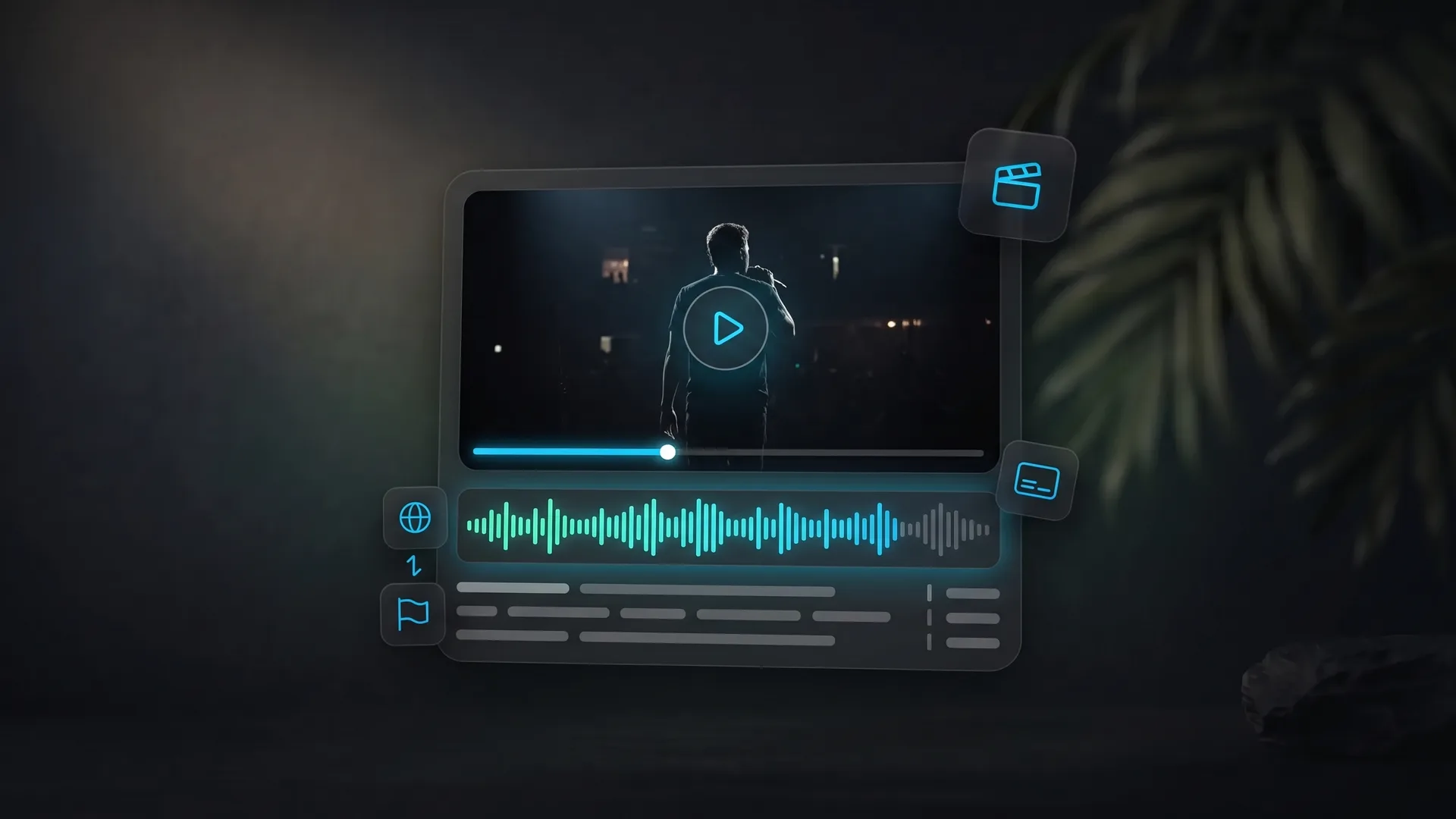
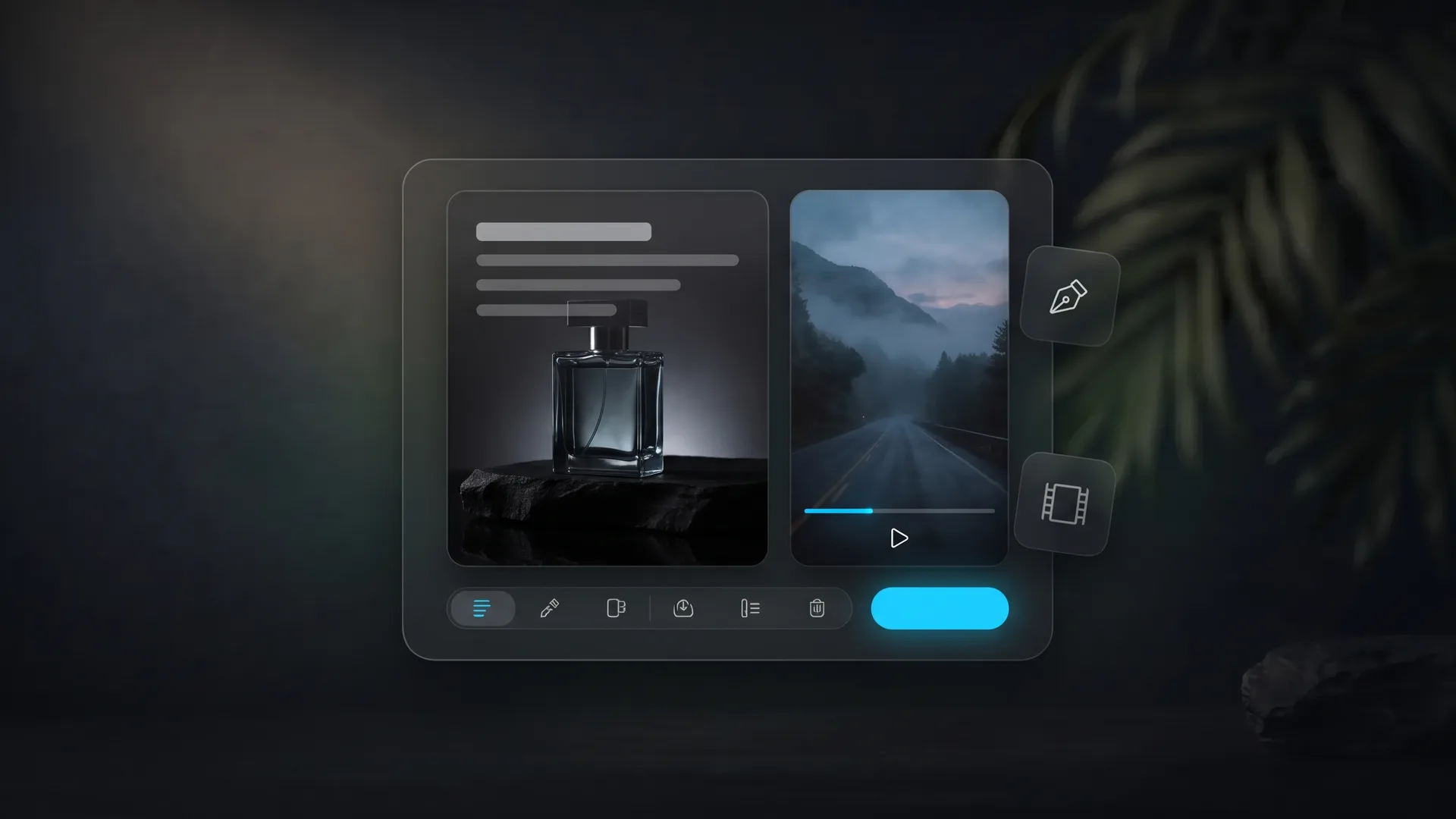
“No music” for finished videos and “Remove background” for everyone
Strip the music from a finished clip while keeping speech and sounds, right from the video studio. And the Remove background tab in the image studio is now open to everyone: a transparent PNG in seconds.
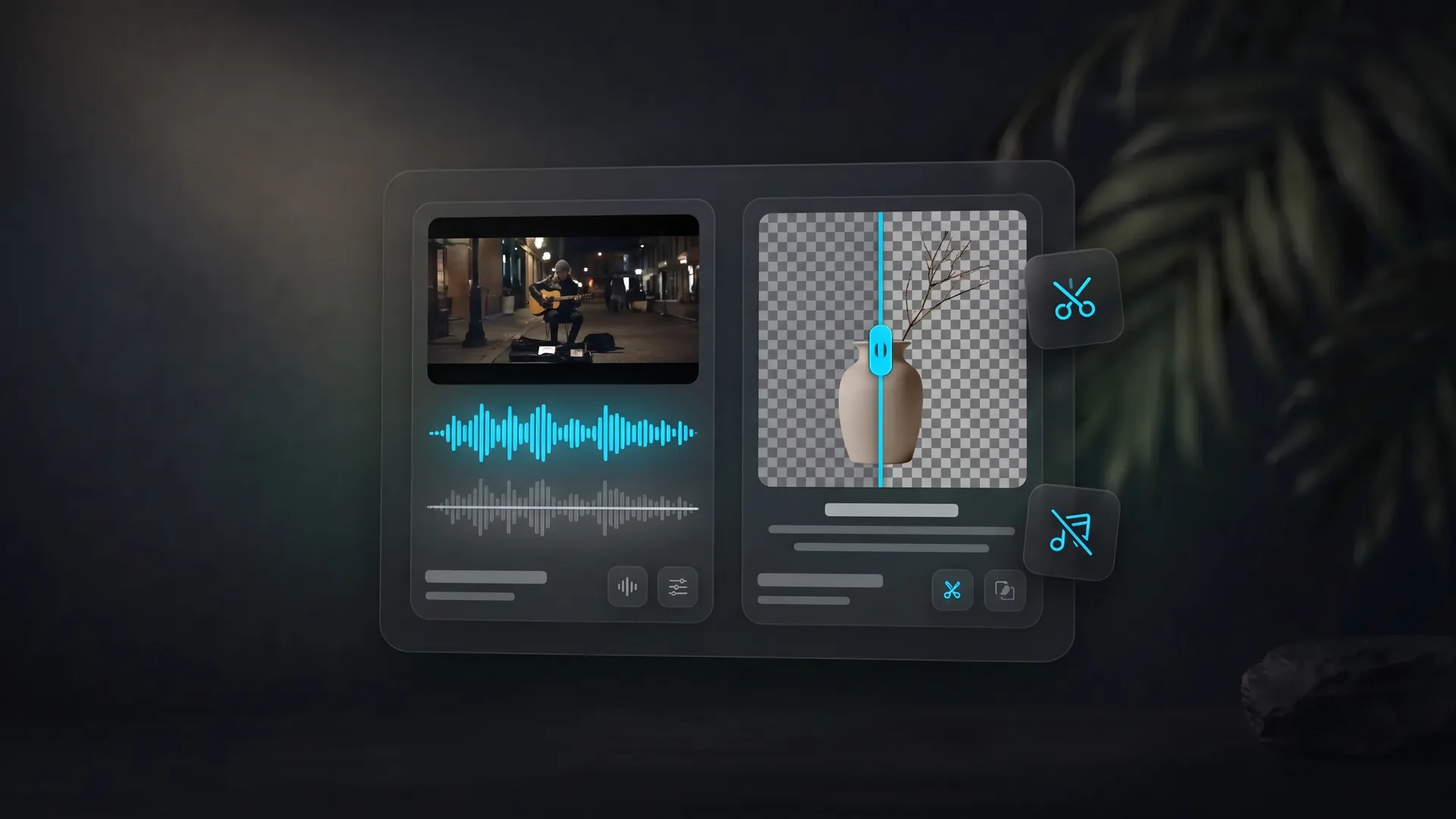
Two new tools for finished media: No music for video and Remove background for photos.
No music
- Where. The No music button sits on a finished clip in the video studio, in My Works and on your author page. For your own files, use the No music mode on the Cleanup tab of the audio studio.
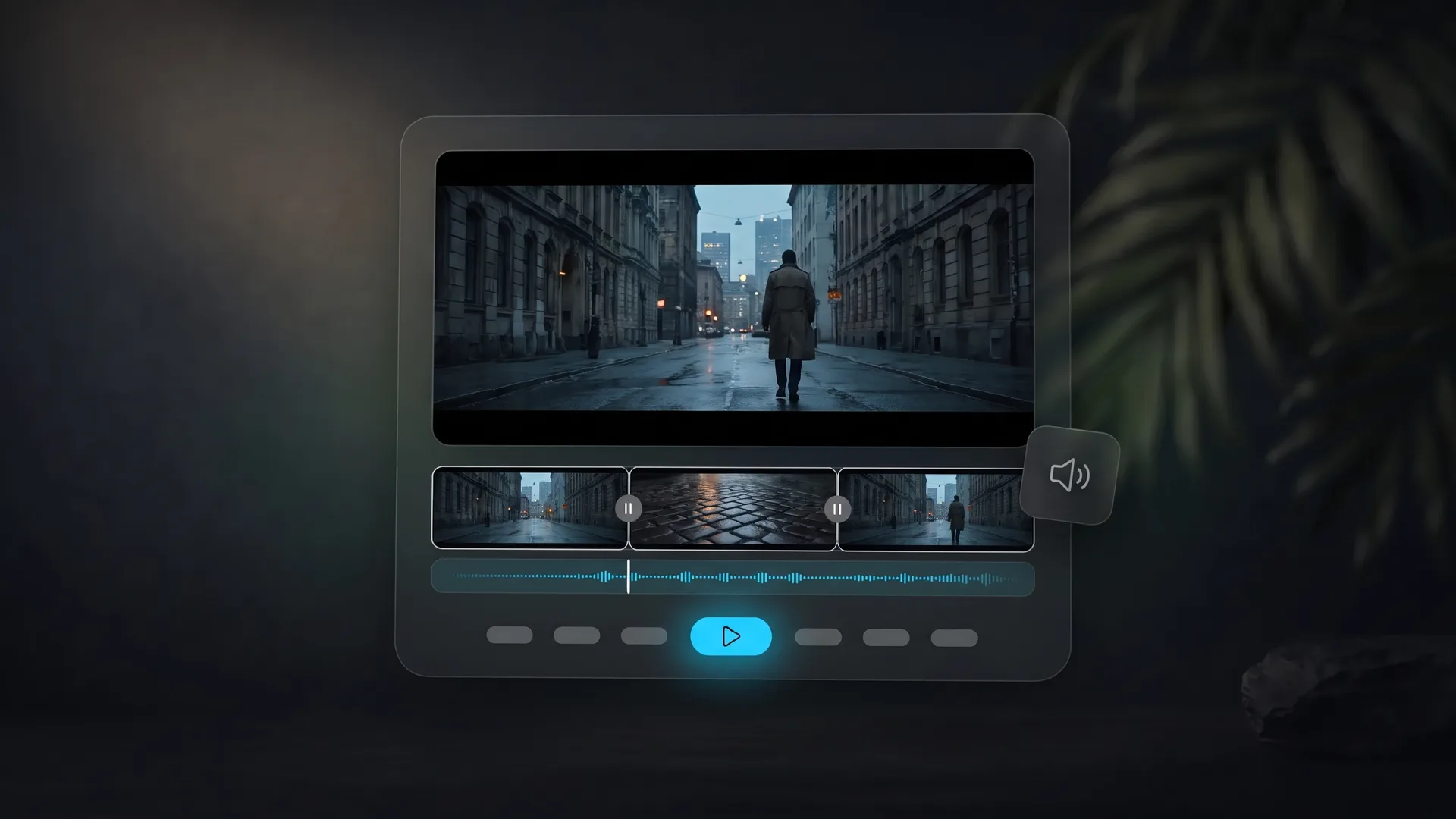
- What it does. Removes the music and keeps speech and scene sounds. If the clip has no live speech, turn off Keep speech: the song's vocals will go along with the music.
- No re-encoding. The picture stays the same, only the soundtrack changes. The original is untouched, and the result is saved with the work.
- Compare and download. Switch between Original and No music, then download the video without music and the music separately.
It takes a finished clip with sound up to 10 minutes long. The price depends on the clip length and is shown on the button.
Remove background
- The image studio tab is now open to everyone. Upload a photo, and the AI separates the person, animal or product and returns a PNG with a transparent background at the original size.
- Hair, fur and glass edges are preserved; there is no model or setting to pick.
- Compare the result with the source and check it against different backgrounds.
- The same result downloads as a JPG on white and as an SVG with no extra credits.
How to start
For music, open the video studio or Cleanup in the audio studio; for photos, open the Remove background tab.