
Photo to Video With Sound: Add Native Audio to AI Clips
When to generate synchronized audio with the scene and when to add editable music, voice, and effects afterward

Photo to video with sound means turning one still image into a moving clip and giving that clip an audio layer: ambience, effects, dialogue, voice-over, music, or a combination of them. There are two reliable workflows. A model with generated audio can create motion and synchronized sound in one pass; alternatively, you can generate the visual first and add editable audio in post-production. Choose native audio when event timing matters, and choose post-production when exact words, music edits, licensing, or revisions matter more.
Quick answer: how to turn a photo into a video with sound
Upload a clean photo, choose an image-to-video model that supports generated sound, and write one prompt with separate visual and audio instructions. Keep the first test to one visible action and two or three sound elements. If the audio must contain exact narration, a licensed track, or frame-level edits, generate the image-to-video clip first and add those elements afterward in an editor.
Open the Clipia video studio, upload one image, and test a short scene before committing to a longer render.
What “photo to video with sound” actually means
The phrase sounds like one feature, but it covers five different jobs. Ambience establishes a place: room tone, wind, traffic, rain, or a cafe background. Sound effects mark visible events: a door closes, glass touches a table, shoes hit pavement. Dialogue belongs to an on-screen speaker and must match the scene. Voice-over is narration placed over the picture without needing lip synchronization. Music controls rhythm and mood but usually does not need to originate inside the scene.
This distinction changes the workflow. A native audio model is strongest when the sound should react to what happens in the generated frames. The model can place a footstep near the footfall or a ceramic clink near the moment a cup touches a saucer. A separate editing pass is stronger when you need to rewrite one sentence, lower the music beneath speech, reuse an approved brand track, or deliver multiple language versions without regenerating the picture.
“Native” does not mean “automatically correct.” It means the audio and visual tracks are generated as one scene rather than assembled as independent assets. The result can still contain a late effect, an unwanted voice, inconsistent ambience, or a sound that does not match the object. Treat the first output as a synchronized draft and review it with headphones.
Listen to a real synchronized-audio example
This eight-second Clipia editorial example has both an H.264 video stream and an AAC audio stream; the files were inspected on August 14, 2026. The prompt assigns the sound transition to the same timeline as the light and camera change, which makes it useful for checking whether events remain synchronized. Play it with sound, then replay it while watching the cup, window and lighting cues.
Equivalent text alternative: the clip has no dialogue. The complete visible action and all meaningful audio events — morning ambience, cup sounds, evening jazz and rain — are described in the prompt and caption below.
Seamless cinematic transition from morning to evening in the same cafe. The woman subtly breathes and shifts her weight as daylight dissolves into twilight. Steam keeps rising from the cup. Ambient sound transitions from distant morning chatter and clinking cups to quiet evening jazz and rain on the window; natural motion; eight seconds.
A generated cafe transition with synchronized ambience, cup sounds, music and rain. Review the audio as critically as the moving image.
Four ways to make a photo video with sound
1. Kling 2.6 Image-to-Video: a compact native-sound test
Kling 2.6 Image-to-Video is useful when you want a short, controlled scene and an explicit sound option. Clipia’s production catalog identifies the model as image-to-video with audio-generation capability. Its live pricing matrix offers five- and ten-second durations, so the scope is easy to understand before you render.
For a five-second clip, the matrix checked on August 14, 2026 lists 20 credits (≈$0.80) for the video and 20 additional credits for generated sound. That makes a five-second sound-enabled test 40 credits — about $1.60 — at the currently listed settings. This separation is practical: you can run a silent motion test first, inspect the face and camera movement, then enable sound only after the visual direction works.
Best for: portraits, product close-ups, food shots, and simple actions where one or two audible events need to align with the picture.
Copy-ready prompt:
A close portrait slowly turns toward camera and blinks once. Soft room tone, a quiet fabric rustle exactly as the subject moves, one distant bird outside, no music, no speech, static camera.
Watch for: too many events inside five seconds. A head turn, spoken sentence, passing vehicle, dramatic camera move, and music cue compete for timing. Keep the scene physically possible and give the model one primary sound event.
2. Grok Imagine Video 1.5: flexible duration with synchronized sound
Grok Imagine Video 1.5 is the flexible-duration option in this comparison. The live Clipia catalog describes it as image-to-video with synchronized sound, and the production matrix lists durations from one to fifteen seconds. Short duration steps let you test the same photo without jumping directly to a long clip.
At the five-second setting, the matrix checked on August 14, 2026 lists 5 credits (≈$0.20) at 480p and 9 credits (≈$0.36) at 720p. The matrix contains no separate sound add-on for this model. That is different from the explicit sound line items on Kling 2.6 and Kling 3, so compare the final price shown in the editor rather than transferring assumptions between models.
Best for: ambient product shots, travel images, landscapes, short social clips, and scenes where sound should feel continuous rather than hit one exact cue.
Copy-ready prompt:
A ceramic coffee cup on a wooden table, steam curling upward while the camera pushes in slowly. Gentle cafe ambience, one ceramic clink at the start, soft steam hiss, no voices, no music.
Watch for: vague mood words without an audible source. “Cinematic audio” is not a production instruction. “Low room tone, one ceramic clink, soft steam hiss” gives the model events it can place.
3. Kling 3 Image-to-Video: more output choices with an optional sound layer
Kling 3 Image-to-Video is the higher-resolution, longer-duration option here. Clipia’s production catalog marks it with audio-generation capability, and the live matrix lists three to fifteen seconds with 720p and 1080p price combinations.
For a five-second 720p result, the matrix checked on August 14, 2026 lists 36 credits (≈$1.44) for the video and 18 additional credits for generated sound, or 54 credits — about $2.17 — with that sound option. A five-second 1080p result is listed at 49 credits before sound, with a 23-credit sound option. These are date-stamped production values, not permanent promises; the editor’s total is the final check before generation.
Best for: hero product shots, cinematic portraits, scenes that may need 1080p, and longer actions where the sound arc needs more room.
Copy-ready prompt:
A vintage train photograph comes alive as the train begins moving through light rain, slow lateral camera tracking. Rhythmic wheel clatter grows gradually, rain taps on metal, one distant horn near the end, no music, no dialogue.
Watch for: sound that describes an off-screen world larger than the picture. If the photo shows a close product shot, a stadium crowd and several vehicles give the model no visible timing anchors. Make the sound field match the frame.
4. Generate the motion first, then add audio in post-production
The fourth method works with any image-to-video model: create the cleanest visual clip first, then add music, voice-over, ambience, effects, and captions as separate tracks. This is not a fallback for inferior technology. It is the correct architecture when the audio must remain editable.
Official Adobe Premiere documentation describes video and audio as separate timeline tracks and provides a Merge Clips workflow for synchronizing separately created assets. That structure gives you independent volume, timing, replacement, and language control. You can keep the picture, replace one sentence, move a sound effect by three frames, or produce another language version without paying to regenerate the motion.
Best for: advertisements with approved copy, tutorials, multilingual narration, licensed music, exact brand sound, dialogue that must be word-perfect, and any project with a review chain.
Simple post-production plan:
- Generate the silent image-to-video clip and approve the visual motion.
- Add room tone or ambience first so the scene does not feel empty.
- Place one-shot effects on visible events.
- Add voice-over or dialogue on a separate track.
- Add music last and reduce it beneath speech.
- Create captions from the final spoken track, not from an earlier script.
Create the visual draft in Clipia, then decide whether the generated sound is production-ready or should be rebuilt as editable tracks.
One still, three models: how the sound differs
Below is the same frame animated by three different models with the same prompt and sound enabled. The scene was chosen so the audio actually carries meaning: live music, rain and city ambience. Turn the volume on — the difference is easier to hear than to see.
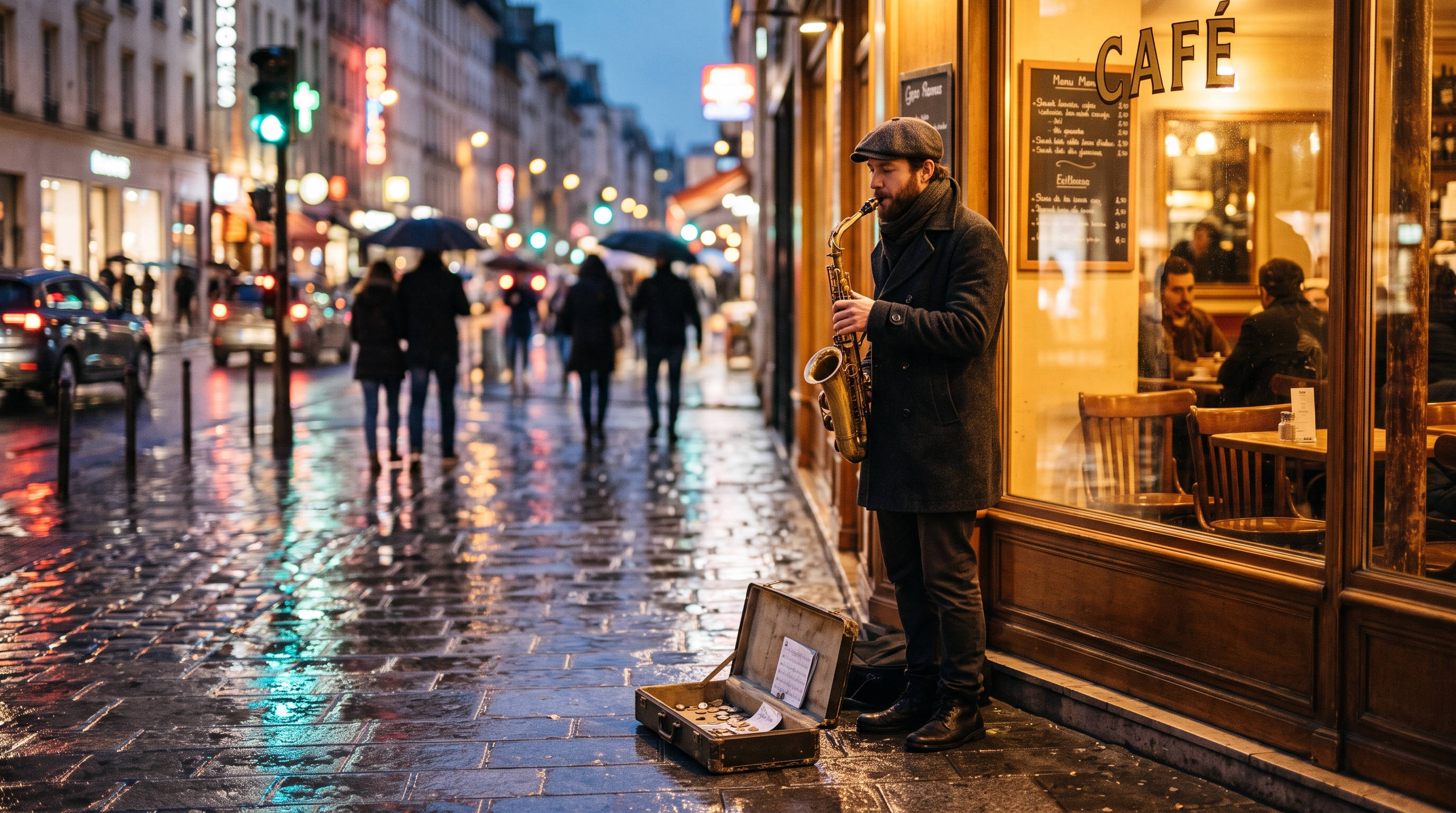
The prompt was identical across all three runs:
Kling 2.6 Image-to-Video — 5 seconds, 1928×1072, 44.1 kHz stereo. Video and sound are billed separately: 20 + 20 = 40 credits, about $1.60.
Kling 3 Image-to-Video — 5 seconds, 720p, 44.1 kHz stereo. 36 credits for the video plus 18 for sound, 54 credits total, about $2.17.
Seedance 2.5 Image-to-Video — 5 seconds, 32 kHz stereo, 88 credits, about $3.53. Here audio is included in the generation price with no separate line item. Note that the model returned a 960×960 frame although the source was horizontal — worth checking aspect ratio on a short test.
What this comparison shows. The audio is created together with the picture and lands on the beat of the scene without manual syncing — the saxophone plays where the character plays, and the rain does not cut off at an edit point. The character of the sound differs, though: one result leans toward street ambience, another toward the instrument up close. More expensive does not automatically mean better for your scene — at five seconds the difference is audible within a minute, and that is the cheapest way to pick a model for the job.
Native AI audio vs adding sound later
The best choice depends on what must stay synchronized and what must stay editable. Native audio reduces assembly work, but post-production reduces revision risk.
| Decision factor | Generated with the video | Added after the video |
|---|---|---|
| Timing to visible action | Created in the same scene and often naturally aligned | Placed manually with frame-level control |
| Exact dialogue | Can drift from requested wording or delivery | Record or synthesize the approved script separately |
| Music | Useful for mood drafts; limited editability | Best for licensed tracks, beat edits, and brand music |
| Revisions | Changing sound may require another full generation | Replace one track without changing the picture |
| Multilingual versions | Usually requires another generated take | Reuse the same video and swap narration and captions |
| Fast concept test | Strong: one prompt produces an audiovisual draft | More assembly, but cleaner control |
| Best use | Ambient scenes, effects, short social concepts | Campaigns, tutorials, exact speech, approved music |
Use a hybrid workflow when the scene needs both. Keep native ambience and synchronized effects if they work, then add narration, captions, and approved music in post. Do not regenerate a strong visual merely because one audio layer needs replacement.
Step-by-step: make an AI video from a photo with sound
Step 1. Prepare a clean source image
Use the highest-quality original available. Make sure the main subject is in focus, important edges are visible, and the crop leaves room for the requested motion. If a person must turn, leave space in the turn direction. If a vehicle must move, leave space ahead of it. Audio cannot rescue a visual motion that has nowhere to go.
Step 2. Decide the audio architecture before you generate
Write down the deliverable in one line. “A five-second atmospheric product loop” points toward generated ambience. “A fifteen-second advertisement with exact narration and an approved track” points toward post-production. This decision prevents the common mistake of asking a native-audio model to solve a tightly edited commercial mix in one pass.
Step 3. Split the prompt into visual and audio clauses
Write the visual action first, then a full stop, then the audio field. This makes the instruction easier to inspect and revise.
Visual: The bottle rotates one quarter turn while the camera makes a slow macro push-in, highlights moving across the glass. Audio: Quiet studio room tone, one soft glass chime as the highlight reaches the label, no music, no speech.
Avoid adjectives without observable meaning. “Epic,” “viral,” and “premium” do not specify a sound source, distance, or timing. Translate them into production language: low distant rumble, close dry click, wide reverberant hall, cue at the final second.
Step 4. Generate a short test
Test the shortest duration that can contain the action. A short test reveals whether the model understood the motion and sound field without spending on a longer version. Listen once without watching to catch unwanted voices or tonal changes, then watch without sound to judge the visual on its own.
Step 5. Review five separate dimensions
- Visual continuity: does the subject keep its identity, shape, and texture?
- Event sync: does each effect occur near the visible action?
- Audio continuity: does the background remain stable, or does it jump between rooms?
- Speech accuracy: if words are present, are they correct and intelligible?
- Deliverable safety: do you have permission for the image, voice, music, and recognizable people?
Step 6. Finish the mix and captions
If dialogue or meaningful effects remain in the final clip, caption them. W3C’s WCAG 2.2 guidance for prerecorded synchronized media requires captions unless the media is a clearly labeled alternative to equivalent text. W3C also explains that captions cover both speech and meaningful non-speech information, such as music or sound effects. A useful caption therefore says more than the spoken sentence when the sound itself carries meaning.
A sound-prompt formula that is easy to reuse
Build the audio clause from six parts. You do not need all six every time, but the order keeps the instruction concrete.
- Source: what makes the sound: fabric, tires, rain, a cup, a speaker.
- Action: what the source does: rustles, rolls, taps, pours, whispers.
- Distance: close, mid-distance, outside the room, far in the background.
- Environment: dry studio, tiled kitchen, open field, busy street.
- Timing: at the start, exactly on contact, growing through the shot, fading at the end.
- Exclusions: no music, no speech, no crowd, no sudden impact.
Compact formula:
[Sound source] [action], heard from [distance] in [environment], [timing instruction], no [unwanted elements].
Portrait
A man looks up from an old photograph and smiles faintly. Quiet room tone, a close paper rustle when his hand moves, soft rain beyond the window, no dialogue, no music.
Product
A watch rotates slowly under a narrow light, macro camera. One precise metallic click at the beginning, subtle mechanical ticking close to camera, quiet studio background, no voice.
Landscape
Clouds move over a mountain lake while the camera glides forward. Wide natural wind, gentle water at mid-distance, one far bird call near the final second, no music, no speech.
Food
Hot sauce pours over a plated dish in slow motion. Close liquid pour, light ceramic contact exactly as the plate settles, quiet kitchen ambience, no voices, no music.
Archive photo
A railway platform photograph comes alive with subtle movement. Low steam hiss, restrained footsteps in the distance, a soft train bell near the end, period-neutral ambience, no modern traffic, no dialogue.
Short social loop
A sneaker rises from shadow as the camera circles slightly. Tight bass pulse at the first reveal, one clean fabric movement, short airy transition into the loop point, no speech.
Common mistakes and direct fixes
The prompt asks for a mood, not a sound
Weak: beautiful cinematic audio.
Better: low distant city rumble, close fabric rustle on the turn, one soft tonal rise during the camera push, no speech.
Every sound is equally loud
Give the model distance and hierarchy. The visible action should usually be close; the environment should sit behind it. “Close key click, soft office ambience far behind” is clearer than a list of unrelated nouns.
The image cannot support the requested event
A still image provides only one visible moment. If the prompt asks a seated person to stand, cross a room, open a door, and speak, both motion and audio timing become guesses. Split the concept into multiple clips or reduce it to one action.
Music is used to hide a weak sound field
Music can support rhythm, but it does not fix a mismatched effect or unstable ambience. Review the scene without music first. Add the track only after the visual and event sounds work.
The final clip has dialogue but no captions
Generate captions from the approved final audio, then include relevant sound cues when they carry meaning. Captions should not be based on a draft script if the generated words changed.
Verified pricing snapshot
The following values were read from Clipia’s live production pricing matrices on August 14, 2026. They describe specific five-second settings, not every possible duration or resolution.
| Workflow | Five-second setting | Video | Sound | Total at checked setting |
|---|---|---|---|---|
| Kling 2.6 Image-to-Video | Five seconds | 20 cr ≈ $0.80 | 20 cr ≈ $0.80 | 40 cr ≈ $1.60 |
| Grok Imagine Video 1.5 | Five seconds, 480p | 5 cr ≈ $0.20 | no separate line item | 5 cr ≈ $0.20 |
| Grok Imagine Video 1.5 | Five seconds, 720p | 9 cr ≈ $0.36 | no separate line item | 9 cr ≈ $0.36 |
| Kling 3 Image-to-Video | Five seconds, 720p | 36 cr ≈ $1.44 | 18 cr ≈ $0.72 | 54 cr ≈ $2.17 |
Pricing configurations can change. Always check the total displayed in the editor for your selected model, duration, resolution, and sound setting before generating.
Frequently asked questions
How do I turn a photo into a video with sound?
Upload the photo to an image-to-video model, describe one visible movement, and add a separate audio clause naming the ambience and effects you want. Choose a model with generated-audio support if timing should be created with the scene. If you need exact narration, licensed music, or repeated revisions, generate the visual first and add those tracks afterward.
Can AI generate sound together with a video?
Yes. Clipia’s live catalog identifies Kling 2.6 and Kling 3 Image-to-Video with audio-generation capability and describes Grok Imagine Video 1.5 with synchronized sound. Capabilities and prices differ by model, so inspect the selected model’s controls and final credit total before generation.
Is native AI audio better than adding music later?
Native audio is better for rapidly testing synchronized ambience and visible sound events. Adding audio later is better when the music must be licensed, edited to beats, lowered under speech, or replaced without changing the video. Many production projects use a hybrid: keep useful generated ambience and add narration, captions, and approved music afterward.
How should I prompt sound effects for an AI video?
Name the source, action, distance, environment, timing, and exclusions. For example: “Close ceramic clink exactly when the cup reaches the saucer, quiet cafe ambience in the background, soft steam hiss, no music, no voices.” Concrete audible events are easier to control than mood words such as “epic” or “cinematic.”
Can I add voice-over after animating the photo?
Yes, and post-production is usually the safer workflow for exact narration. Keep the voice-over on its own track, reduce music beneath it, and create captions from the approved final recording. You can then replace the voice or language without regenerating the visual clip.
Do AI videos with dialogue need captions?
For web accessibility, W3C WCAG 2.2 requires captions for prerecorded synchronized media unless the media is a clearly labeled alternative to equivalent text. Captions should include spoken content and meaningful non-speech information such as important effects or music cues.
Make the first sound-enabled test
Start with one clean photo, one visible action, and two audible elements. Keep the first clip short, review motion and sound separately, then decide whether to keep the generated track or finish the mix in post. Open Clipia’s video studio to create the first image-to-video draft.
Sources
- Kling 2.6 on Clipia — public sound toggle and duration description, checked August 14, 2026.
- Grok Imagine Video 1.5 on Clipia — public built-in audio, duration, and resolution description, checked August 14, 2026.
- Kling 3 on Clipia — public optional sound, duration, and resolution description, checked August 14, 2026.
- Kling 2.6 Image-to-Video production pricing matrix — duration and sound add-on values, checked August 14, 2026.
- Grok Imagine Video 1.5 production pricing matrix — duration and resolution values, checked August 14, 2026.
- Kling 3 Image-to-Video production pricing matrix — duration, resolution, and sound add-on values, checked August 14, 2026.
- Adobe Premiere: Synchronize audio and video — official workflow for separately created audio and video tracks.
- W3C: Understanding Success Criterion 1.2.2, Captions (Prerecorded) — caption requirements for synchronized media.


