Kling AI Tutorial: Modes, Versions, Prices and Prompts
From the first prompt to a finished clip: modes, 20 models and prices in credits
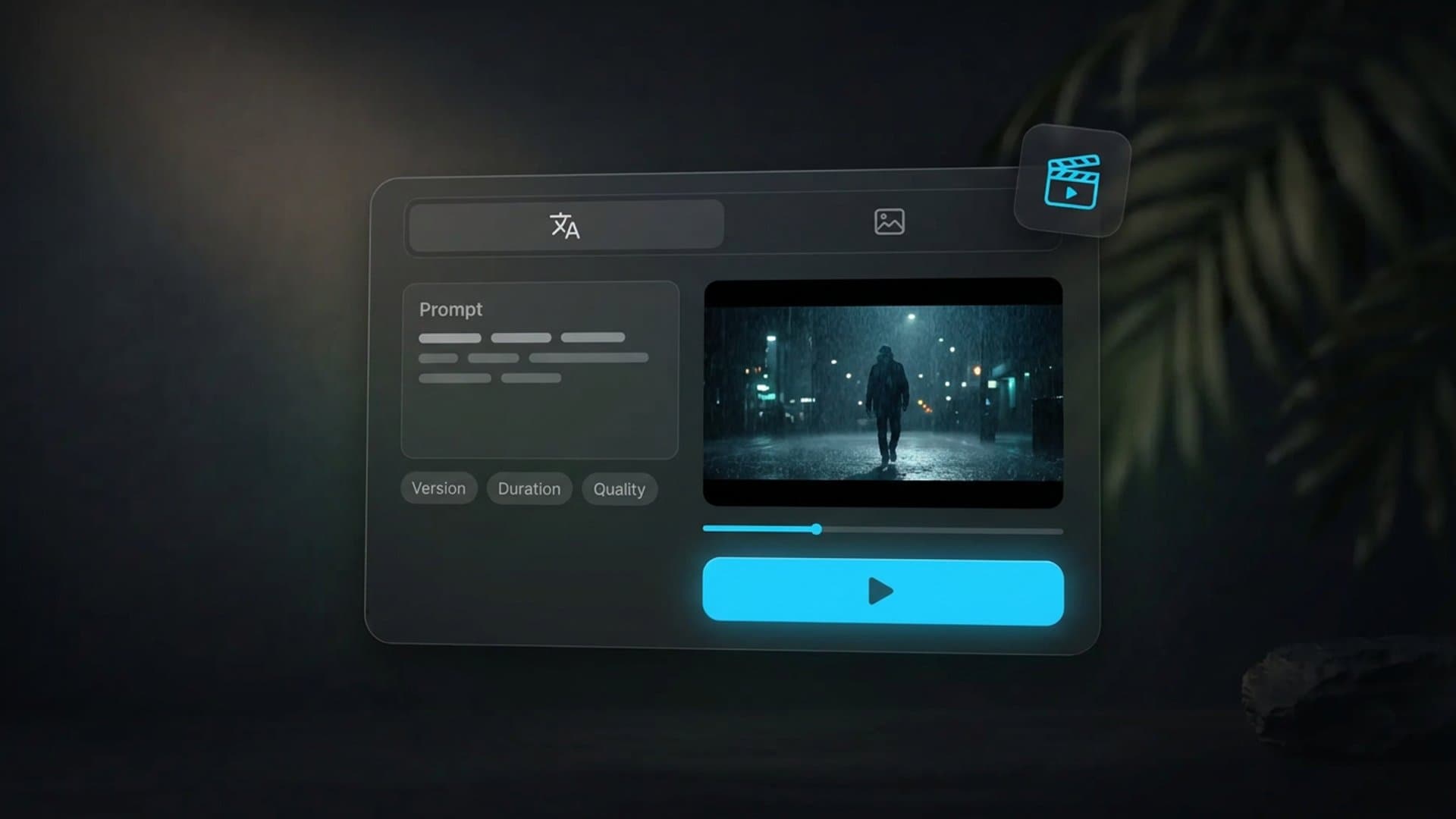
Kling AI is a family of video models from Kuaishou that turns a text description or a photo into a clip, and its newer versions add sound in the same pass. This Kling AI tutorial in one line: pick text-to-video or image-to-video, choose the version that fits your budget, describe the scene in four parts — who, what they do, where, how the camera moves — and set duration and quality. Below you will find a step-by-step walkthrough, copy-ready prompts, the differences between versions from 2.5 Turbo to 4.0, and exact prices in credits.
Quick answer
You can use Kling AI in two places: on Kuaishou's own site or on a platform that plugs the model into a shared video studio. In Clipia it takes five steps: open the Text to video or Image to video tab, pick a Kling version, write the prompt, set duration, quality and sound, and press Generate.
As of November 10, 2026, the Clipia catalog lists 20 Kling models. The newest generation is Kling 4.0: clips from 3 to 30 seconds with sound included, and 5 seconds at 1080p cost 110 credits. Its lighter version, Kling 4.0 Flash, makes clips of up to 20 seconds at 720p only, also with sound included. If budget matters more than length, take Kling 3: 5 seconds at 1080p cost 44 credits, or 65 with sound. The cheapest 5-second clip in the text-to-video and image-to-video modes is Kling 2.6 without sound at 23 credits.
Beyond generation, Kling has two tools for narrow jobs: Kling Lip Sync makes the person in a photo speak your recording, and Kling 3.0 Motion Control moves a character from a photo the way someone moves in a reference video.
Want to try it right away? Open the Clipia video studio and choose Kling from the model list — the prompt below works as is.
What is Kling AI and which modes does it have?
Kling is not a single model but a line that Kuaishou updates several times a year. Each version supports one or more modes, and the mode decides what you feed in.
The Kling 3.0 series launched on February 5, 2026. According to Kuaishou's press release, it included four models — Video 3.0, Video 3.0 Omni, Image 3.0 and Image 3.0 Omni — and clips grew to up to 15 seconds with native audio. Video 3.0 speaks English, Chinese, Japanese, Korean and Spanish, plus English accents and Chinese dialects.
Kuaishou launched Kling 4.0 on October 15, 2026. The company's release names three headline changes: up to 30 seconds generated in a single pass, Omni Reference that combines up to 15 references (images, videos, subjects, voices), and up to 10 keyframes in one scene.
In November 2026, Kling 4.0 Flash joined the Clipia catalog as a lighter version of Kling 4.0. It works from text, animates a photo as the first frame and builds a scene from photo and video references, but clips run from 3 to 20 seconds and come out at 720p only. Sound is generated together with the picture. If you need 1080p or 30 seconds, that is still a job for Kling 4.0.
The main Kling modes
- Text to video. You describe the scene in words and the model builds the shot from scratch. Good for intros, ad concepts and scenes that do not exist in a photo.
- Image to video. Your photo becomes the first frame and the prompt only sets the motion. Good for products, portraits and illustrations — anything where the original picture must stay intact.
- References. Kling O3, Kling 4.0 and Kling 4.0 Flash in Reference to Video mode take several images as samples of a character, an object or a style and build a new scene from them.
- Lip sync. Kling Lip Sync makes a portrait speak your recording, with lips and expression following the speech.
- Motion transfer. Kling 2.6 and 3.0 Motion Control copy motion from a reference video onto a character from a photo.
Kling versions in the Clipia catalog
Data from the Clipia model catalog as of November 10, 2026.
| Version | Modes | Duration | Sound |
|---|---|---|---|
| Kling v2.5 Turbo Pro | text, image | 5 or 10 s | no |
| Kling 2.6 | text, image | 5 or 10 s | paid add-on |
| Kling 3 | text, image | 3–15 s, up to 4K | paid add-on |
| Kling 3 Multi-Shot | text, up to 5 scenes | up to 15 s | yes |
| Kling O3 | text, image, references, video edit | 3–15 s | native, paid add-on |
| Kling 4.0 | text, image, frames, references | 3–30 s, 720p or 1080p | included |
| Kling 4.0 Flash | text, image, references | 3–20 s, 720p only | included |
Where to use Kling AI: the official site or Clipia
Kling's official site has a Quick Start section with guides for text-to-video and image-to-video, keyframes, camera movement and separate notes on Video 3.0. If you prefer working there, start with those guides — they come from the model's developer.
The other route is a platform where Kling sits next to other models. In Clipia that is one video studio: Seedance, Veo, Hailuo and other models live in the same window, and every result lands in My tasks. That helps when you compare models on one prompt or build a longer clip from several segments. Plans start at $10 a month for 240 credits as of November 2026, and every Kling model is included in every plan.
An honest limit: new Clipia accounts get 5 welcome credits, which is not enough for Kling. To try Kling, you need a plan or a credit pack.
Kling AI tutorial: text to video and image to video step by step
Here is the workflow in the Clipia video studio. It is the same for every Kling version; only the available settings — duration, quality and sound — change.
Step 1. Pick a mode
Ask one question: what do you already have? Only an idea — open Text to video. A product shot, portrait or illustration — Image to video. A portrait and a voice recording — the Animate a photo tab, Talking photo mode. A video with motion you want to copy — Motion control. A full tour of the studio tabs is in our guide on how to make AI videos.
You can also start from the model's generation page. The Kling 4.0 link opens the video studio with the model already selected, and the Kling 4.0 Flash link works the same way.
Step 2. Choose the Kling version
Pick the model in the form. The rule is simple: Kling 4.0 when you need up to 30 seconds or 1080p with sound at no extra cost; Kling 4.0 Flash when you want sound right away and 720p is enough; Kling 3 when 15 seconds is enough and you need 4K or a silent clip; Kling 2.6 and v2.5 Turbo Pro for silent drafts. Find the scene on a cheaper version first, then shoot the final take on the stronger one.
Step 3. Write the prompt
A good Kling prompt has four parts: who is in the shot, what they do, where it happens and how the camera moves. Light and mood are an optional fifth. Skip long paragraphs: one or two sentences with concrete verbs beat a list of adjectives.
A young woman in a yellow raincoat walks down a wet city street at dusk, stops and looks up at a neon sign, the camera slowly pulls back, city lights reflecting on the asphalt
In image-to-video you do not need to describe the subject or the setting — they are already in the photo. Write only the motion in the What happens field: what changes in the frame and what the camera does.
Steam slowly rises from a cup of coffee, the camera gently pushes in, tree branches sway outside the window in the background
Step 4. Set duration, quality and sound
Duration and quality drive the price most. Kling 3 offers 3 to 15 seconds, 720p, 1080p or 4K, and sound is a separate paid setting. Kling 4.0 offers 3 to 30 seconds at 720p or 1080p with sound included. Every setting updates the amount on the Generate button, so you see the cost before you start.
Match the aspect ratio to the platform: 9:16 for vertical social video, 16:9 for YouTube and websites, 1:1 for feeds. Kling 4.0 also supports 21:9 for a wide cinematic frame.
Step 5. Generate and review
Press Generate. The finished clip appears in My tasks, where you can download it, run it again with the same prompt or pass it to another tab through Use in…. If the motion is off, change one part of the prompt at a time so you know what made the difference.
Image to video: what to keep in mind
The Image to video tab accepts photos up to 10 MB. Besides Single image, there is First & last frame: you upload two images and the model builds the transition between them. The closer the pose and light in the two frames, the smoother the result.
Need a clip longer than one generation? Build it from segments: take the last frame of a finished clip, upload it to Image to video as the starting frame and describe how the motion continues. The character and light carry over without a jump.
You can repeat the example above right now: open the video studio, pick Kling 3 or Kling 4.0 and paste the raincoat prompt.
Kling prompt tips: bad vs good
The model does what is written, not what was implied, so a vague description of motion is a common reason a clip fails. Compare the pairs.
| Bad | Good | Why |
|---|---|---|
| A cool video with a car | A red convertible drives along a mountain road at sunset, the camera follows at wheel height | Subject, action, place and camera |
| A girl moves | A girl slowly turns her head to the camera and smiles | One specific motion instead of a vague one |
| Epic cinematic scene in 8K | A knight walks out of the fog onto a field, the camera rises above him | Quality is a setting, not a word in the prompt |
| A cat jumps, runs, catches a ball and falls asleep | A cat leaps for a ball and catches it with its paws | Five to ten seconds fit one or two actions |
- One scene, one main action. Five seconds fit one motion. Split a multi-event story into segments or use Kling 3 Multi-Shot for up to 5 scenes in one clip.
- Describe the camera separately. Without "the camera pushes in" or "the camera stays still", the model picks the movement itself.
- For photos, do not repeat what is already in the frame. A contradicting description can distort the picture.
Copy-ready prompts for common jobs
Three templates to copy and adapt: a product shot for image-to-video, a portrait, and a vertical text-to-video clip.
A perfume bottle slowly rotates on a marble stand, a highlight glides across the glass, the camera smoothly orbits the bottle from right to left
The man in the portrait blinks, tilts his head slightly and smiles calmly, a light breeze moves his hair, the camera stays still
Vertical shot: a barista pours milk into a cup and draws a heart in the foam, close-up on the hands, the camera slowly lowers toward the cup
Camera phrasing for your prompt: pushes in, pulls back, orbits left to right, rises above the subject, follows the subject, stays still. One camera move per scene is enough.
Talking photos and motion transfer: dedicated Kling tools
If the job is to make a person in a photo speak or repeat a specific movement, plain image-to-video will not do it. Kling has dedicated models for that.
Kling Lip Sync
Kling Lip Sync by Kuaishou takes a portrait and a speech recording and outputs a video where the lips and expression match the audio. In the studio this is the Talking photo mode of the Animate a photo tab: upload a front-facing portrait up to 10 MB, choose Own file, add an MP3, WAV, OGG or AAC recording from 3 seconds to 3 minutes and up to 40 MB and press Make it talk. Output is 720p and the clip is as long as the audio. As of November 10, 2026, Kling Lip Sync charges 13 credits for 3 seconds, 41 for 10 seconds, 246 for a full minute and 738 for three minutes. Because Lip Sync repeats your recording, it works in any language.
Kling 3.0 Motion Control
Kling 3.0 Motion Control copies motion from a reference video onto a character from a photo: a dance, a gesture, a walk. In the studio this is the Motion control tab. It costs 7 credits per second at 720p: 3 seconds cost 21 credits as of November 10, 2026. Distortion drops when the pose in the photo resembles the first pose in the video. For a lower price there is Kling 2.6 Motion Control, from 11 credits.
Where Clipia will not help: editing segments on a timeline, adding titles and music happens in a regular video editor. Kling generates clips; assembling a long edit with transitions is a separate job.
How much does Kling AI cost and which model should you pick?
Prices as of November 10, 2026, taken from Clipia's cost calculator on the day the article was checked. The exact amount is always shown on the Generate button.
| Model and settings | Price |
|---|---|
| Kling v2.5 Turbo Pro, 5 s, no sound | 24 credits |
| Kling 2.6, 5 s, without / with sound | 23 / 46 credits |
| Kling 3, 5 s, 720p / with sound | 36 / 49 credits |
| Kling 3, 5 s, 1080p / with sound | 44 / 65 credits |
| Kling 3, 10 s, 1080p, with sound | 129 credits |
| Kling 3, 15 s, 1080p, with sound | 194 credits |
| Kling O3, 5 s, 1080p, with sound | 85 credits |
| Kling 4.0, 5 s, 720p, sound included | 75 credits |
| Kling 4.0, 5 s, 1080p, sound included | 110 credits |
| Kling 4.0, 10 s, 1080p, sound included | 220 credits |
| Kling 4.0, 30 s, 1080p, sound included | 660 credits |
| Kling 4.0 Flash, 5 s, 720p, sound included | 45 credits |
| Kling 4.0 Flash, 20 s, 720p, sound included | 180 credits |
| Kling Lip Sync, 3 s / 10 s / 60 s / 180 s | 13 / 41 / 246 / 738 credits |
For a 5-second 1080p clip with sound, Kling 4.0 costs about 1.7 times more than Kling 3. The extra cost pays off when you need more than 15 seconds in one pass or reference-driven scenes. At 720p, Kling 4.0 Flash charges 45 credits for the same 5 seconds: 40% less than Kling 4.0 at that quality and a little less than Kling 3 with sound at 720p (49 credits). The Basic plan's 240 credits cover three such clips on Kling 3, two on Kling 4.0 or five 5-second clips on Kling 4.0 Flash. For a quality comparison of Kling 3 against Seedance 2.0 and Veo 3.1 on identical prompts, see Seedance 2.0 vs Kling 3.0 vs Veo 3.1; we do not repeat those tests here.
Best for: which Kling version to choose
Based on the Clipia catalog and Kuaishou's releases; prices as of November 10, 2026.
| Task | Model | Why | Configuration price |
|---|---|---|---|
| Silent draft of an idea | Kling 2.6 | cheapest 5-second clip in text and image modes | 23 credits for 5 s |
| Short social clip with sound | Kling 3 | up to 15 s, sound add-on, 9:16 | 65 credits for 5 s at 1080p |
| A clip with sound when 720p is enough | Kling 4.0 Flash | 3–20 s, sound included | 45 credits for 5 s |
| Up to 30 seconds in one pass | Kling 4.0 | 3–30 s, sound included | 220 credits for 10 s at 1080p |
| A character built from several photos | Kling 4.0 Reference to Video | up to 10 photos and 5 video references | 75 credits for 5 s at 720p from photos |
| Several scenes in one clip | Kling 3 Multi-Shot | up to 5 scenes, up to 15 s | from 155 credits |
| A portrait speaks your recording | Kling Lip Sync | lips follow audio in any language | 41 credits for 10 s |
| A character repeats motion from a video | Kling 3.0 Motion Control | motion comes from the reference | 21 credits for 3 s at 720p |
How we checked
Checked on November 10, 2026:
- Prices — from Clipia's cost calculator for every configuration in the tables; it is the same calculation that charges credits.
- Modes, duration, quality — from the Clipia model catalog: model descriptions and their price grids, including Kling 4.0 and Kling 4.0 Flash.
- Release dates and capabilities — from Kuaishou's press releases on Kling 3.0 (February 5, 2026) and Kling 4.0 (October 15, 2026).
- Studio workflow — from the Clipia video studio interface as of November 2026.
What we did not do: we ran no test generations for this article and do not compare quality between versions, so there are no claims like "Kling 4.0 is more realistic" — only capabilities and prices.
FAQ
How many credits does a Kling video cost?
A 5-second clip in the text-to-video and image-to-video modes starts at 23 credits on Kling 2.6 without sound, and Kling v2.5 Turbo Pro costs 24. Kling 3 starts at 36 credits for 5 seconds at 720p, Kling 4.0 Flash costs 45 for 5 seconds with sound, and Kling 4.0 starts at 75 for 5 seconds at 720p with sound. Prices as of November 10, 2026.
Can I use my own voice?
Yes, with Kling Lip Sync: upload a portrait and a speech recording from 3 seconds to 3 minutes, and the lips in the photo follow your voice. Output is 720p, and Kling Lip Sync charges 13 credits for 3 seconds as of November 10, 2026. You can also create the recording in Clipia's audio studio.
What is the difference between Kling 4.0 and Kling 3?
Kling 4.0 makes up to 30 seconds in one pass versus 15 for Kling 3, includes sound in the price, and adds a reference mode and up to 10 keyframes per scene. Kling 3 is cheaper, while Kling 4.0 also offers a wide 21:9 frame. Prices for both versions at different settings are in the table in the cost section.
How long can a Kling video be?
Kling 4.0 generates up to 30 seconds at once, per Kuaishou's release and the Clipia catalog. Kling 3 and Kling O3 go up to 15 seconds, Kling 2.6 and v2.5 Turbo up to 10. Longer videos are built from segments, where the last frame of one clip starts the next.
Are the welcome credits enough to try Kling?
No. New accounts get five credits, and a Kling generation costs more: motion transfer on Kling 2.6 Motion Control starts at 11 credits for 3 seconds, and a clip from text or an image starts at 22 credits (Kling 3, 3 seconds at 720p) as of November 10, 2026. Welcome credits let you explore the studio on lower-cost models; for Kling you need a plan or a credit pack.
Bottom line
Using Kling AI comes down to the mode that matches your source, the version that matches length and budget, and the prompt formula above. Kling 4.0 handles long scenes and reference work, and Lip Sync and Motion Control cover talking portraits and motion transfer.
Draft at 720p, find the prompt that works, then shoot the final take at 1080p. Open the Clipia video studio, pick Kling and run your first scene.
Sources
Try it yourself on Clipia
60+ models for video and image generation. One account, transparent pricing.