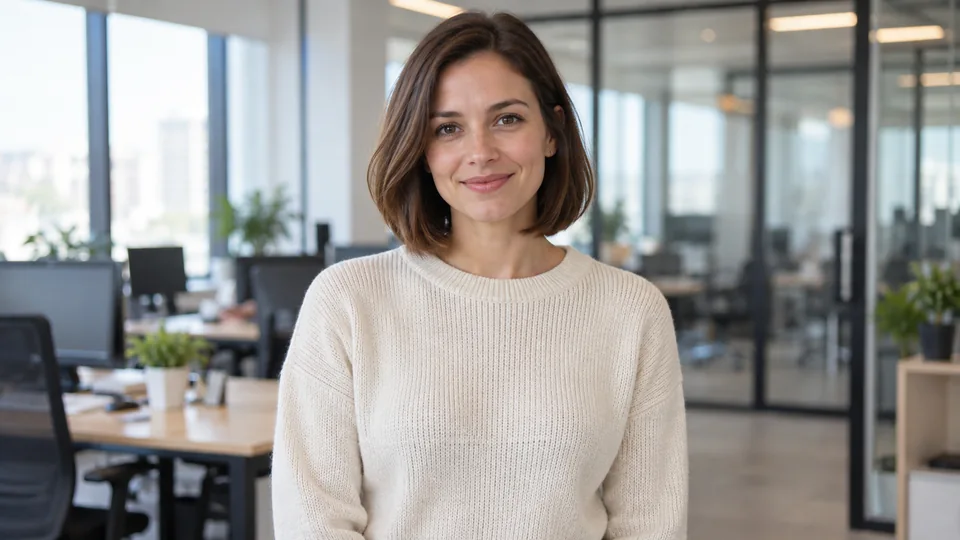
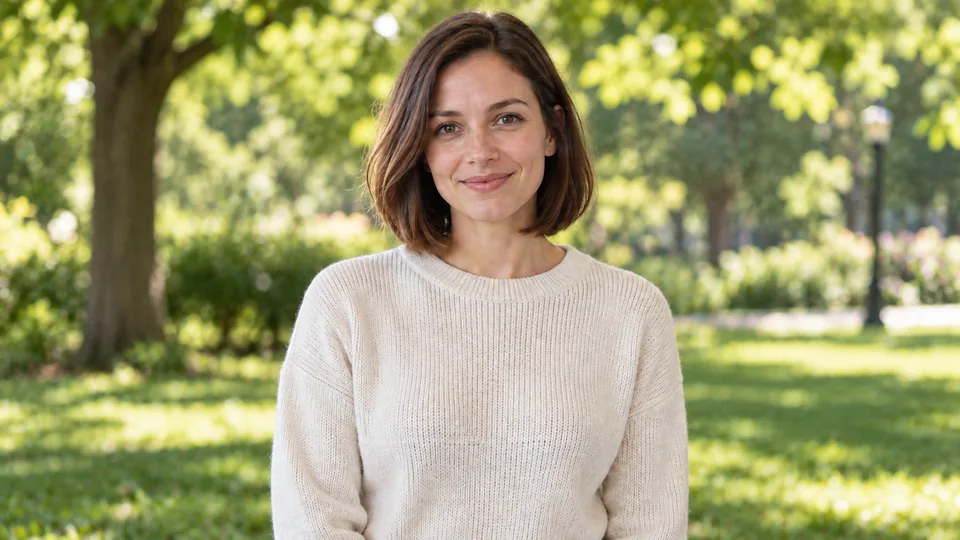
Edit photos with AI using a text prompt
The Clipia.ai photo editor changes a picture from a text prompt: upload a photo, describe the edit, and the model changes only what you named. Swap the background, remove an object or change an outfit without a graphics editor.
What can the AI photo editor do?
The Edit photo tab takes a picture up to 10 MB, including HEIC from an iPhone, and a prompt such as “replace the background with a summer park, keep everything else”. The model changes the background, lighting, clothes, details or style and tries to keep everything you did not mention. Editing models include Nano Banana 2 and Nano Banana Pro by Google, GPT Image 2 by OpenAI, Seedream 5.0 by ByteDance, FLUX Kontext by Black Forest Labs and Qwen Image 2 by Alibaba. Some models accept extra reference photos of a background, outfit or style to transfer onto the picture. The “Same as photo” format keeps the original aspect ratio.
What you can do with the AI photo editor
Replace the background
Put a person or product on a new background: a studio, a street, an interior or a plain colour. The model tries to match the lighting to the new scene.
Remove unwanted objects
Erase passers-by, wires, clutter or lettering: the model removes the object and fills in the background.
Change clothes and details
Change a dress colour, try on another jacket, change a hairstyle or accessories while keeping the face and pose.
Change the light and style
Turn a daytime shot into evening, add snow or a sunset, or restyle the photo as watercolour, film or 3D.
Add text or an object
Put lettering on a sign or package, add a cup or a plant to the frame, or place a logo on a T-shirt.
How to do it
Upload a photo
Choose a picture up to 10 MB; HEIC photos from an iPhone work too.
Describe the edit
In the “What to change” field, write what to replace or remove. Add “keep everything else” if the rest of the shot matters.
Pick a model
A starting model is already selected. FLUX Kontext suits precise local edits, GPT Image 2 suits text in the image.
Run and save
Click Edit photo. The result appears in My works, and you can send it on to combining or quality enhancement.
Tips for better results
- Ask for one change at a time so the model can keep the rest of the shot intact.
- Name the object precisely: “remove the red car on the left”, not “remove the clutter”.
- To copy a background or outfit, attach a reference photo with a model that accepts several images.
- For text in the image, choose GPT Image 2 and put the exact words in quotes.
- Only upload photos of people with their consent.
Example prompts for the AI photo editor
New background
Replace the background with a bright studio and a soft shadow, keep the person and clothes unchanged
Remove an object
Remove the person on the right in the background and fill in the wall behind them
Different outfit
Replace the jacket with a beige trench coat, keep the face, pose and background as they are
Evening instead of day
Make the shot look like evening: warm street lights and a sunset sky
Text in the image
Write “Seaside Coffee” on the sign above the entrance in a sans-serif font
Different style
Turn the photo into a watercolour painting, keep the facial features
Product on a new background
Place the bottle on a marble countertop by a window, keep the label unchanged
Which AI models edit photos
The model picker lists these models first. The full list of editing models and the price of each in credits are shown there before you start.
Nano Banana 2.1
Best to startGoogle
The latest Nano Banana for any task
- Up to 14 input photos, renders text
- 14 aspect ratios plus auto, up to 4K
FLUX Kontext Pro
Precise editsBlack Forest Labs
Targeted photo edits by description
- Changes only what you asked
- Can keep the photo proportions
GPT Image 2
Text in frameOpenAI
Posters, lettering and edits by description
- Neat text in the frame
- Up to 16 input photos
How much does AI photo editing cost?
The price in credits is shown on the button before you start. Plans start from $10 per month. Try it free — 5 credits on sign-up.
Frequently asked questions
Can AI edit photos?
Yes. Upload a photo, describe the change in plain words, and the model returns an edited version while the original stays untouched.
How do I edit a photo with AI?
Open the Edit photo tab, upload a picture, write what to change and click Edit photo. The price in credits is shown on the button before you start.
How do I change the background of a photo with AI?
Write a prompt such as “replace the background with a summer park, keep everything else”. For a specific background, attach its photo as a reference with a model that accepts several images.
How do I remove objects from a photo?
Name the object and where it is, for example “remove the person on the right in the background”. The model removes it and fills in the background.
Which AI can edit a photo from a description?
On Clipia.ai, photos are edited by Nano Banana 2 and Nano Banana Pro, GPT Image 2, Seedream 5.0, FLUX Kontext and Qwen Image 2. FLUX Kontext changes only what you ask for, while GPT Image 2 is stronger with text.
How do I remove the background from a photo?
Write “replace the background with plain white, keep the person unchanged” to get a clean background for a catalogue, CV or profile picture.
Will the face stay the same after editing?
The model tries to keep everything you did not ask to change, but facial features can shift. Adding “keep the face unchanged”, making one edit at a time and starting from a sharp photo all help. For precise edits, choose FLUX Kontext.
Can I edit the same photo several times?
Yes: each edit is a new run. Save the result, upload it to the tab again and describe the next change. The original stays untouched.